Is your UPLIFT desk stuck, flashing an error code like E07 or E13, or completely unresponsive? You are not alone. Many users encounter these issues after power outages, heavy loads, or accidental unplugging, yet most problems can be fixed in minutes with a proper reset. According to UPLIFT Desk support, approximately 70% of control boxes sent in for replacement are not actually defective and could have been resolved with a simple reset procedure.
This guide walks you through the exact steps to reset any UPLIFT standing desk, whether you have a digital keypad, paddle controller, or analog model. You will learn how to clear error codes, recalibrate motors, and restore full functionality without contacting support. Whether your desk display is frozen or one leg will not move, this step-by-step process covers all models and common issues.
Standard Reset Procedure for UPLIFT Desks

The universal reset method works across nearly all UPLIFT Desk models. This process reinitializes the control box and synchronizes the motors back to proper operation.
Enter ASR Reset Mode
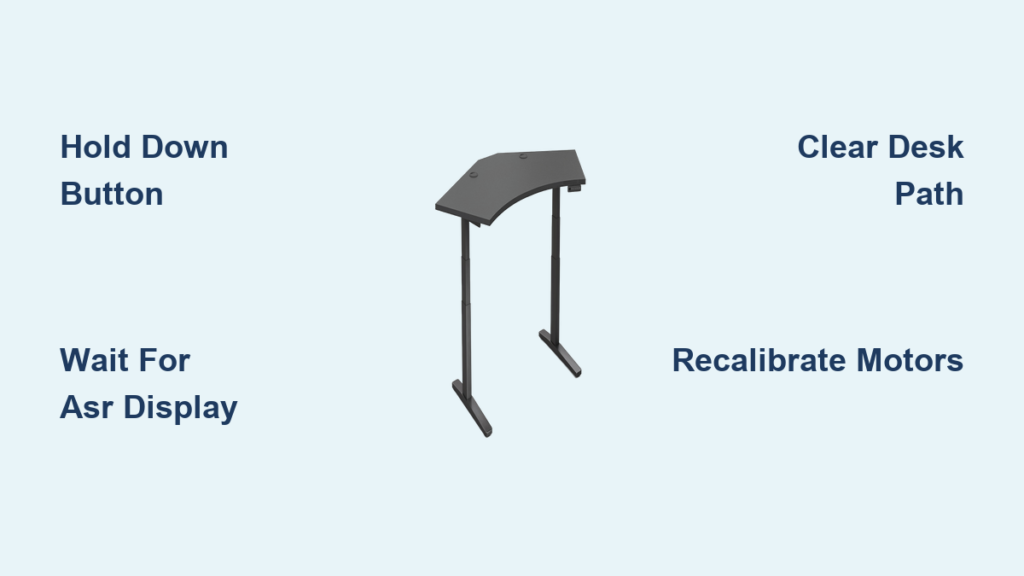
Press and hold the down button on your keypad. Keep holding for up to 10 seconds until one of these indicators appears:
• “ASr” on digital keypads with a screen
• “RESET” on Advanced Paddle Keypads
This signals the desk has entered reset mode. If nothing appears, ensure the desk is powered and try again. Some users need multiple attempts, so do not give up on the first try.
Pro Tip: Make sure the desk can move freely. Obstructions beneath the desk prevent successful entry into ASR mode.
Recalibrate the Motors
Once “ASr” or “RESET” appears on your display:
- Release the down button
- Immediately press and hold it again
- Wait for the desk to lower slightly, rise, then stop
- Listen for a distinct click that confirms motor recalibration
If no movement occurs, repeat the process. The desk must reach its absolute lowest mechanical position for the reset to complete properly.
Critical Warning: Remove CPU towers, drawers, or under-desk mounts if they block full descent. Failure to clear space is the top reason resets fail.
Reset Without Digital Display
Some UPLIFT models use analog keypads with no screen. Even without visual feedback, the reset process still works effectively.
Follow Blind Reset Steps
- Hold the down button until the desk reaches the bottom
- Continue pressing for 5 to 10 seconds after it stops
- Release, then press down again
- The desk should move down slightly, then up, confirming reset success
Note: No “ASr” message will appear on analog keypads, but the internal control box still performs the reset. Trust the motor response over the absence of visual indicators.
Fix E07 and E08 Error Codes
These error codes usually appear after sudden power loss during desk movement, such as a power strip being turned off mid-motion.
Clear E07/E08 with Power Cycle
- Unplug the desk from the wall
- Hold the down button for 10 to 15 seconds to drain residual power
- Plug the desk back in
- Immediately press and hold down until “ASr” appears
- Continue holding until the desk moves
User Success Story: Multiple users have confirmed this clears E07, E08, and even E12 errors. One user resolved a looping E08 and ASR display by repeating this process three times.
Resolve E13 Synchronization Error
The E13 error means one leg is not moving in sync with the others. This often happens due to uneven weight distribution or an obstruction preventing free movement.
Perform Full E13 Reset
- Press and hold down until “ASr” or blinking lights appear
- Keep holding until all legs descend past the normal bottom limit
- Release the button once the desk drops slightly below its usual stop point
- The desk will automatically recalibrate and stabilize
Visual Cue: All three motors should engage and lower together. If one leg lags, check for binding or loose wiring connections.
Prevent Future E13 Errors
• Distribute weight evenly across the desktop
• Avoid placing heavy monitors on one side only
• Inspect leg rails monthly for dust, debris, or misalignment
• Tighten motor connections at the control box
• Never exceed the maximum load capacity
Advanced Troubleshooting Steps
When the standard reset fails, try these deeper fixes before contacting support.
Power Cycle with Button Hold
- Unplug the desk from the wall
- Wait 30 seconds for the control box to fully discharge
- While holding the down button, plug the desk back in
- Keep holding until the desk responds
User Hack: One user successfully used this method on both IKEA and UPLIFT desks. It mimics a hard reset by fully draining capacitors.
Check Motor Cable Connections
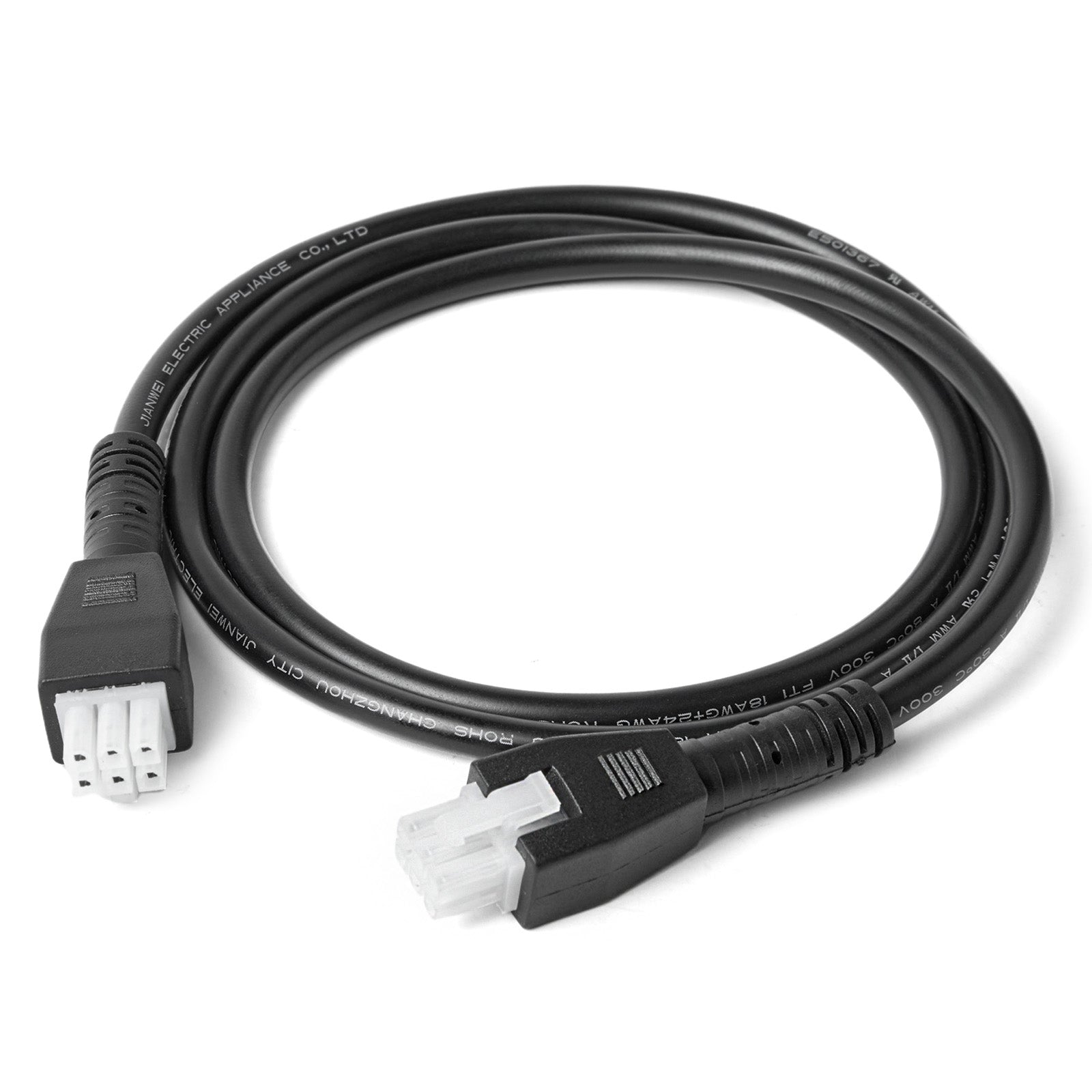
- Unplug the desk completely
- Locate the control box under the desktop
- Inspect all motor cables for:
• Bent pins on the connectors
• Frayed or damaged wires
• Loose or unseated connections - Reseat each cable firmly into its port
Pro Insight: A user fixed intermittent movement by reseating a loose connector before even attempting the reset procedure.
Test Motors Individually
If one leg does not move:
- Swap two motor cables at the control box
- Attempt to move the desk using the keypad
- If the problem follows the cable, it is a wiring issue
- If the problem stays with the leg, the motor may be faulty
Important: Always unplug the desk before swapping any cables.
Firmware and Software Updates
UPLIFT occasionally releases firmware updates to fix bugs or improve desk stability.
How to Update Firmware
No self-service tool exists for firmware updates. You must contact UPLIFT support directly if you suspect outdated firmware is causing recurring errors. Provide your control box serial number when reaching out, which is found on the label attached to the control box.
Note: Firmware updates can resolve persistent error codes and improve ASR responsiveness. Contact support if you have recurring issues after successful resets.
Keypad Types and Reset Differences

Different UPLIFT controllers show reset prompts differently, though the underlying procedure remains the same.
| Keypad Type | Reset Display | Action Required |
|---|---|---|
| Standard Digital | “ASr” | Hold down until display changes |
| Advanced Paddle | “RESET” | Same process, larger buttons |
| Analog No Screen | None visible | Rely on motor movement feedback |
Despite display differences, the reset logic is identical across all keypad models.
User-Tested Workarounds
Real UPLIFT desk owners have shared effective fixes when standard methods fail.
Extended Hold Plus Replug Method
- Unplug the desk completely
- Hold the down button for 30 seconds
- While still holding the button, plug in the power cord
- Continue holding until the desk begins to move
- Let it lower fully, then perform a standard reset
Why This Works: Fully drains all capacitors and forces a clean boot of the control system.
Repeat ASR Until Response
- After “ASr” appears, release and press down again
- Hold until “ASR” disappears and the desk moves
- Repeat 2 to 3 times if needed
Best For: Advanced Paddle Keypads that have delayed response times.
Clear Path Completely
- Remove all under-desk equipment including PCs, drawers, and mounts
- Ensure the desk can lower past its normal stop point
- Perform the reset procedure
Fact: The reset requires mechanical over-travel. Obstructions block this, causing the reset to fail repeatedly.
When to Contact UPLIFT Support
If none of the above methods work, it is time to reach out to UPLIFT directly.
Support Contact Details
• Phone: 800-349-3839
• Email: hello@upliftdesk.com
• Live Chat: Available at upliftdesk.com
• Hours: Monday through Friday 8 AM to 6 PM CT, Saturday 9 AM to 6 PM CT
User Feedback: Multiple customers have praised UPLIFT support for providing quick, accurate help with desk issues.
Warranty Coverage
UPLIFT desks come with a 15-year warranty covering motors, frame, and control box. Failed components not fixed by reset are often covered under warranty with no cost for replacement parts if you are still within the coverage period.
Prevent Future Reset Needs
Avoid recurring issues with these maintenance best practices.
Avoid Power Interruptions
• Use a labeled outlet or surge protector to prevent accidental unplugging
• Never turn off a power strip while the desk is moving
• Keep the power cord secure and undamaged
Balance Your Load
• Center heavy items like monitors and PCs on the desk
• Avoid placing more than 100 lbs on one side
• Distribute equipment evenly across the desktop surface
Perform Regular Maintenance Resets
• Reset every 3 to 6 months to keep motors synchronized
• This is especially important if you adjust height frequently throughout the day
Keep the Desk Path Clear
• Regularly check for obstructions under the desk
• Clean leg rails with a dry cloth monthly
• Inspect for debris that could cause binding
Apply Firmware Updates
• Respond to UPLIFT notifications about updates
• Firmware updates can prevent known bugs and improve performance
• Contact support if you have not received updates and experience issues
Frequently Asked Questions About Resetting UPLIFT Desks
How do I reset my UPLIFT desk to factory settings?
Press and hold the down button for up to 10 seconds until “ASr” or “RESET” appears on the display. Release and press down again, holding until the desk moves down slightly, rises, and stops. This completes the factory reset.
Why is my UPLIFT desk showing E07 or E08?
These error codes typically appear after a power interruption during desk movement. Unplug the desk, hold the down button for 15 seconds to drain residual power, then plug back in and perform the standard reset procedure.
What does E13 mean on my UPLIFT desk?
E13 indicates a motor synchronization error where one leg moves at a different rate than the others. This usually results from uneven weight distribution, mechanical binding, or loose connections. Perform a full reset and ensure weight is balanced.
Can I reset my UPLIFT desk without a display?
Yes. Hold the down button until the desk reaches the bottom, continue holding for 5 to 10 seconds after it stops, then release and press down again. The desk will move slightly down and up, confirming the reset even without visual feedback.
How often should I reset my UPLIFT desk?
Perform a reset every 3 to 6 months as maintenance, or whenever error codes appear or the desk becomes unresponsive. More frequent resets may be needed if you adjust height multiple times daily.
What if the reset does not work?
Try advanced troubleshooting including power cycling with button hold, checking motor cable connections, and testing motors individually. If all else fails, contact UPLIFT support at 800-349-3839 for warranty service.
Key Takeaways for Resetting Your UPLIFT Desk
Most UPLIFT desk issues are software or calibration related, not hardware failures. By following the correct reset procedure, clearing space beneath the desk, entering ASR mode, and allowing full recalibration, you can restore normal operation in minutes. Start with the standard reset, then escalate to advanced troubleshooting steps if needed.
The most common reason reset attempts fail is obstructed movement. Always remove CPU towers, drawers, and under-desk mounts before attempting a reset. The desk must reach its absolute lowest position and slightly beyond for the recalibration to complete.
With a 15-year warranty covering motors, frame, and control box, plus responsive customer support, your UPLIFT desk is built to last when maintained properly. Keep the path clear, distribute weight evenly, and perform periodic maintenance resets to keep your desk running smoothly for years to come.