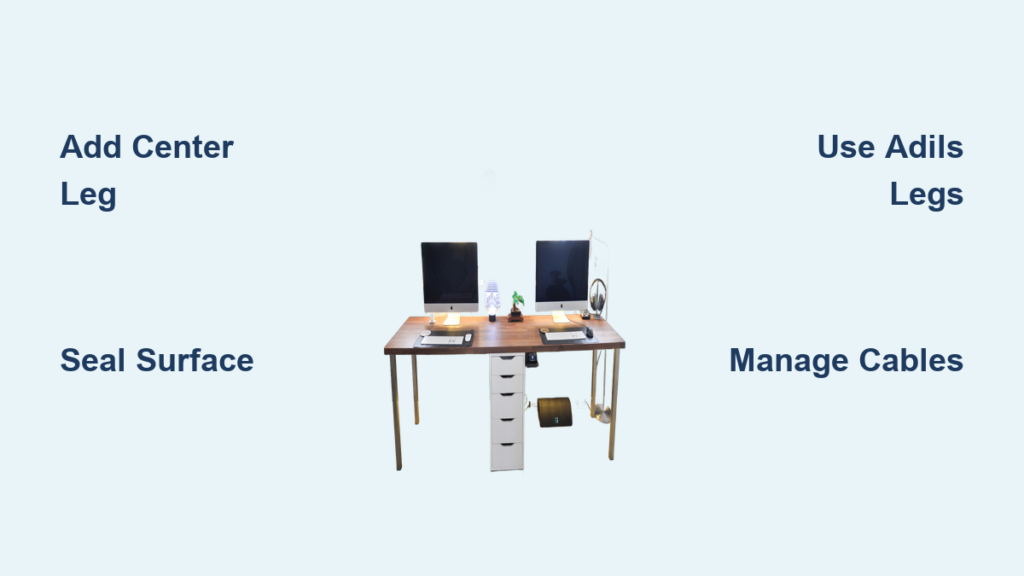
A cluttered desk kills productivity. If you’re working or studying in a tight space like a dorm, studio, or compact home office, every inch matters. Learning how to optimize desk space isn’t just about tidying up; it’s about rethinking how every component functions and fits. The good news is that with strategic upgrades and smart positioning, even the smallest setup can feel open, efficient, and fully functional.
This guide breaks down proven solutions from a real small desk optimization project. You’ll learn exactly how to reclaim surface area, reduce visual noise, and keep everything within reach without spending a fortune.
Free Up Surface With Floor Placement
Moving large components off your desk instantly creates more working space. The floor is often an overlooked storage area that can handle bulky items without interfering with your daily workflow.
Move PC Tower to the Floor
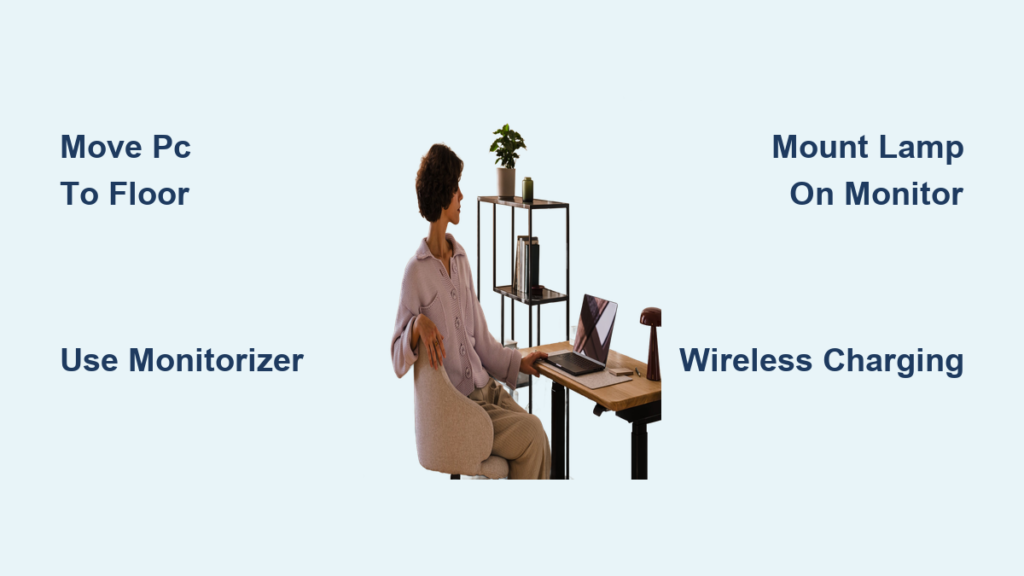
Placing your desktop PC on the floor clears valuable desk space immediately. This shift also improves airflow around the tower and reduces dust accumulation when positioned correctly. In tight setups like dorms, this simple change makes room for monitors, notebooks, or study materials. Just ensure the area is dry, accessible, and free from foot traffic to avoid accidentally disconnecting cables.
Secure Cables Near the Floor
When your PC sits on the ground, cable management becomes critical. Use zip ties or Velcro straps to bundle wires neatly. Anchor power strips to the desk leg or nearby wall using 3M-mounted anchor strips for easy plug-in access. This prevents tripping hazards and keeps cords from dragging across the floor.
Upgrade to Space-Saving Monitors

A better monitor can replace multiple accessories. Modern displays come with features that eliminate separate speakers, chargers, and cables, freeing up your entire desk surface.
Choose All-in-One Monitor Designs
Swapping a bulky monitor for a modern model like the LG 27-New M850 does more than improve display quality. It reduces accessory clutter entirely. Models with built-in speakers eliminate the need for external ones. Thunderbolt 4 support consolidates charging, data, and display into a single cable. This simplifies connections and frees up ports and surface area for things that actually matter.
Prioritize Screen Real Estate
A larger screen reduces the need for multiple monitors. A 27-inch display provides ample workspace for multitasking, coding, writing, or video editing without doubling your footprint. Combine this with split-screen functions in your operating system for maximum efficiency.
Use Vertical Space Wisely
Your desk has untapped vertical real estate. Mounting devices and accessories upward instead of outward keeps everything accessible while freeing precious surface area.
Mount Devices on Monitor Edges
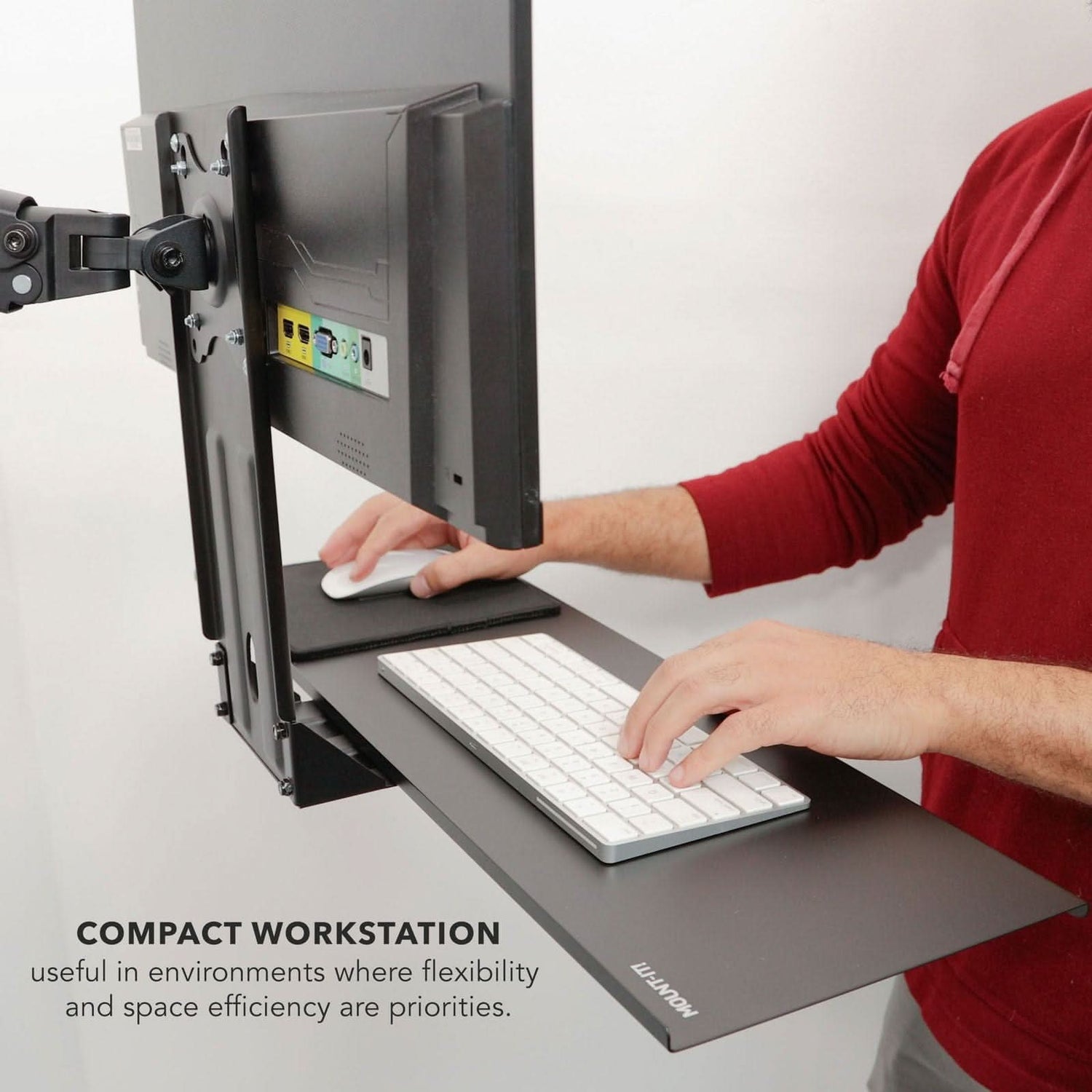
When traditional monitor arms won’t work, like on thin or non-standard desks, use alternative mounting solutions. A monitorizer attaches to the back of your screen, creating a sliding tray for your keyboard or small devices. When not in use, tuck it behind the monitor to vanish from sight completely.
Install Desk Lamp on Monitor
Free up front desk space by clipping a slim LED desk lamp directly onto the top edge of your monitor. This keeps illumination within reach while preserving surface area for essential tools. Opt for models with adjustable brightness and color temperature to support focus during long work sessions.
Optimize Mobile Device Positioning

Laptops and tablets take up massive surface area when laid flat. Standing them vertically reclaims that space while maintaining full functionality.
Use a Vertical Laptop Stand
A metal stand like the YouGreen model allows you to position a MacBook or tablet vertically in clamshell mode. This setup saves significant desk space by aligning the device flat against the wall. It also maintains full port access and promotes airflow, which is critical when using external displays and peripherals.
Enable Clamshell Mode Efficiently
With your laptop docked and closed, connect it to an external monitor, keyboard, and mouse. The vertical stand keeps it organized and easy to remove when you need to take the device on the go. This hybrid approach blends desktop efficiency with laptop portability.
Integrate Compact Charging Solutions
Charging cables create clutter fast. Compact wireless options and smart docking keep devices powered without adding mess to your workspace.
Add MagSafe Wireless Charging
A compact MagSafe charger like the XPower model mounted near your stand or keyboard dock eliminates cable clutter. Its adjustable design lets you position it at an angle, making it easy to place and remove your phone. Because it snaps magnetically, charging starts instantly with no fumbling with ports.
Centralize Peripheral Charging
Use a universal charging dock compatible with devices like Logitech and Razer mice. Place it beside your monitor or stand so you can swap gear quickly. This prevents dead batteries mid-task and keeps small items organized instead of scattered across the desk.
Anchor Power Strips Out of Sight
Mount surge protectors or anchor power strips underneath the desk or on the metal frame of a drawer using strong 3M tape. This keeps power outlets accessible but off the main surface. With all cables feeding downward, your desk stays clean and open for work.
Organize Without Using Desk Space
Wall and vertical storage solutions keep items accessible without sacrificing precious surface area. Every accessory that hangs or mounts is one less thing competing for desk space.
Hang Headphones on the Wall
Attach a headphone hanger with 3M double-sided tape to the side of your desk, wall, or monitor frame. This keeps your headphones within arm’s reach while removing them from the workspace entirely. Choose a swivel-style hanger to rotate gear out of the way when not in use.
Use Under-Desk Storage
If floor or wall mounting isn’t possible, consider under-desk trays or baskets. These hold items like notebooks, chargers, or small peripherals without using any surface area. Secure them with clamps or adhesive mounts to avoid drilling into your desk.
Illuminate Strategically With Ambient Lighting
Good lighting improves focus and reduces eye strain. The right setup eliminates the need for bulky desk lamps while adding style to your workspace.
Install RGB Light Strips Behind Monitor
Add RGB LED strips along the back edge of your monitor to create ambient backlighting. This reduces eye strain in low-light environments and adds a personalized touch. Choose smart strips with app control to adjust colors based on task or time of day.
Balance Light to Reduce Glare
Ensure ambient lighting doesn’t reflect on your screen. Position RGB strips so they shine on the wall behind the monitor, not directly at it. Pair with a dimmable desk lamp for task lighting to maintain contrast and visual comfort.
Maintain a Minimalist Workflow
Optimization is ongoing, not a one-time fix. Building habits keeps your space functional long after the initial setup.
Keep Only Daily Essentials on Desk
Adopt a minimalist rule: only items used daily stay on the surface. This typically includes your keyboard, mouse, monitor, and phone charger. Store notebooks, cables, or secondary devices in drawers or wall-mounted organizers.
Declutter Weekly
Set a weekly 5-minute routine to clear dust, re-cable loose wires, and return misplaced items to storage. This habit prevents gradual clutter buildup and keeps your optimized layout functional long-term.
Troubleshoot Common Space Issues
Every desk has unique challenges. Here are solutions for the most frequent problems encountered when optimizing small spaces.
No Room for Monitor Arm? Use a Monitorizer
If your desk is too thick or lacks clamp space, a monitor arm won’t work. Instead, opt for a monitor-mounted tray called a monitorizer. It gives you the benefit of stowing your keyboard when idle, freeing up space without modifying your desk.
Limited Outlets? Use a Surge Protector
Most desks come with only one or two outlets. A compact surge protector plugged into a wall outlet and mounted under the desk provides multiple ports without blocking workspace. Choose one with USB-A and USB-C ports to charge devices directly.
Cables Everywhere? Bundle and Route
Tame cable chaos with Velcro ties and under-desk cable channels. Group power cables, HDMI, and USB lines together and route them along the desk frame. Label each cable for quick identification during troubleshooting.
Frequently Asked Questions About Optimizing Desk Space
How can I maximize desk space in a small dorm room?
Start by moving your PC tower to the floor if you have a desktop. Upgrade to a monitor with built-in speakers to eliminate external speakers. Use vertical stands for laptops and tablets. Mount accessories like lamps and headphones on walls or monitor edges instead of the desk surface.
What is a monitorizer and do I need one?
A monitorizer is a tray that mounts to the back of your monitor, creating storage for a keyboard or small devices. It’s useful when a traditional monitor arm won’t fit your desk, giving you the same stowing capability without requiring desk modifications.
How do I manage cables in a small desk setup?
Use zip ties or Velcro straps to bundle wires together. Anchor power strips under your desk or on desk legs using 3M tape. Route cables along the desk frame and use under-desk cable channels to keep them organized and out of sight.
Does vertical laptop standing damage the device?
No, standing a laptop vertically in clamshell mode is safe and actually promotes better airflow. It maintains full port access and keeps the device cool, especially when connected to an external display and peripherals.
What monitor features save the most desk space?
Look for monitors with built-in speakers to eliminate external speakers. Thunderbolt 4 support reduces cable clutter by combining charging, data, and display into one cable. Larger screens reduce the need for multiple monitors, saving significant footprint.
How often should I declutter my desk?
A quick 5-minute weekly declutter routine works best. This prevents gradual clutter buildup and ensures your optimized layout stays functional. Focus on dusting, cable management, and returning items to their designated storage spots.
Key Takeaways for Optimizing Your Desk Space
Optimizing desk space isn’t about owning the smallest gear. It’s about smart placement, using vertical space effectively, and eliminating redundancy wherever possible. The most impactful changes start with moving your PC to the floor, which instantly frees up valuable surface area for what actually matters.
Upgrade to multifunctional monitors with built-in speakers and Thunderbolt connectivity to reduce accessory clutter. Use monitor-mounted accessories like lamps and monitorizers to reclaim desk space. Anchor power solutions out of sight to maintain a clean, open workspace.
The key is intentionality. Every item should earn its place on your desk. Start with one change like installing a laptop stand or adding a wireless charger, then build toward a clean, clutter-free workspace that supports focus, not frustration.