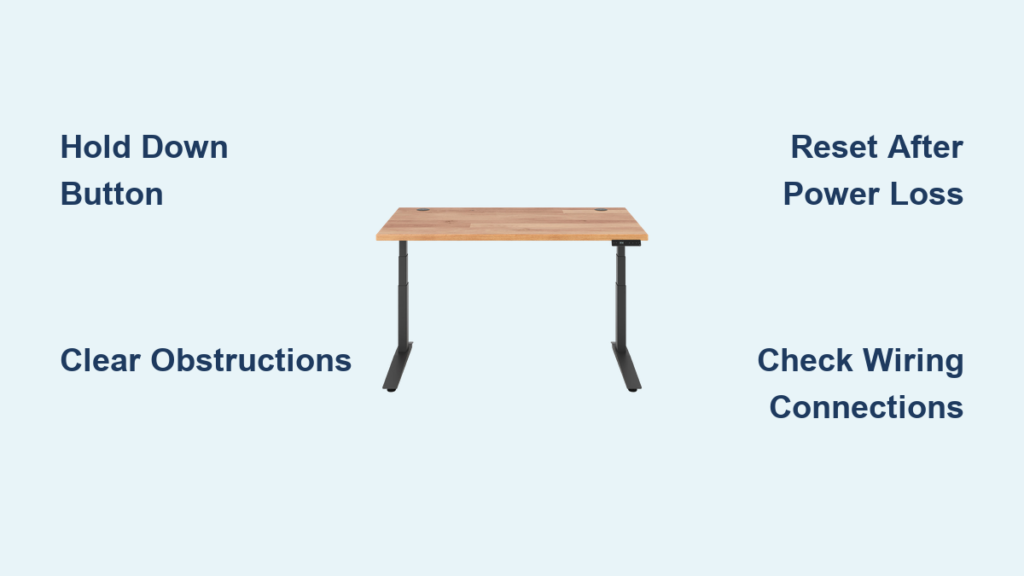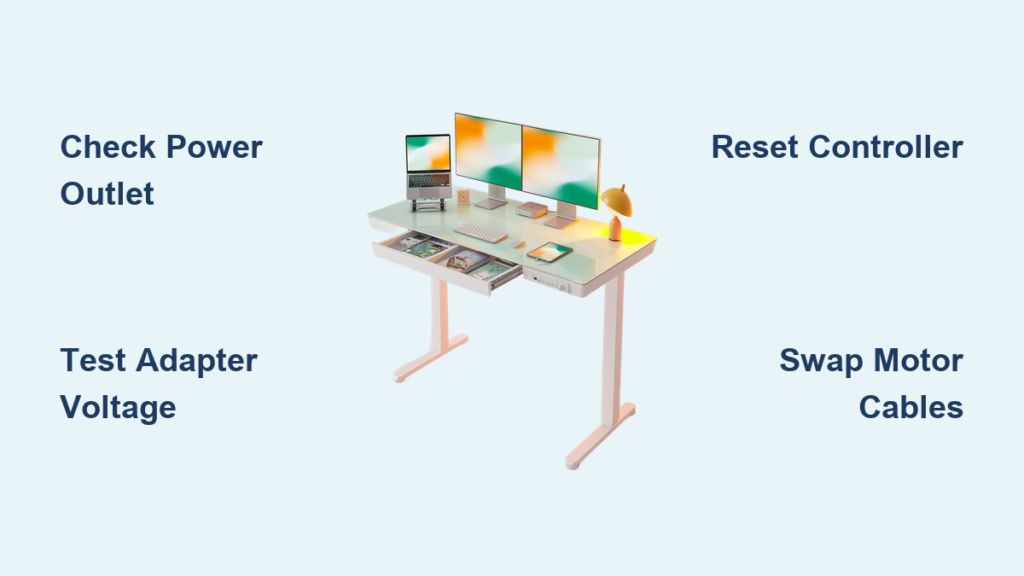
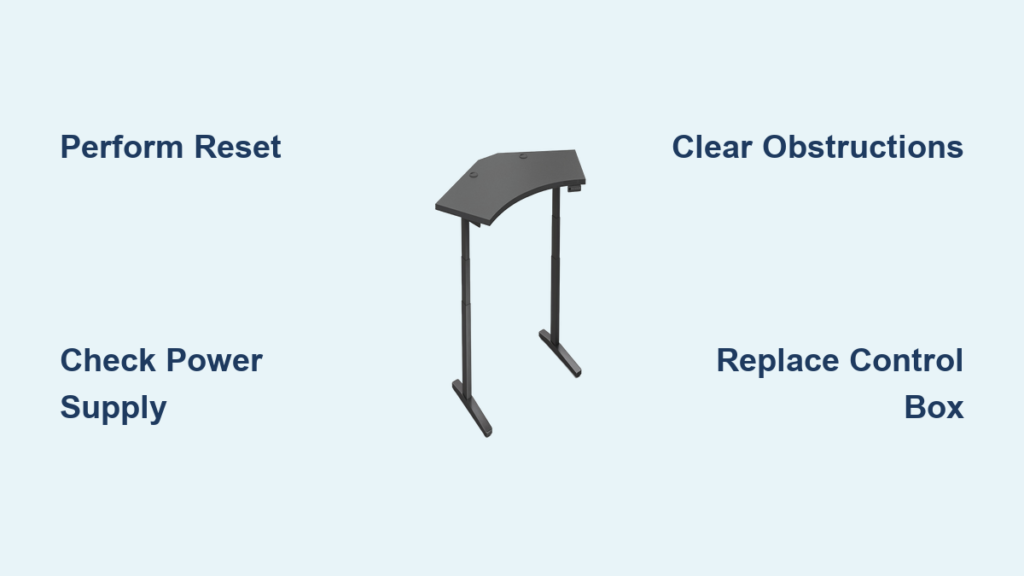
Your UPLIFT Desk suddenly refuses to raise. You press the “Up” button nothing happens. Maybe it lowers just fine, but the desk is stuck too low for comfortable sitting or standing. You are not alone. A growing number of users report their UPLIFT Desk won’t go up, often without warning and sometimes within months of purchase. While these desks are marketed as premium ergonomic solutions, electronic glitches, power issues, or control box failures can leave you with a non-responsive workstation.
The good news? Most cases can be resolved without replacing parts. In fact, UPLIFT Desk confirms that 70% of returned control boxes are not defective they just need a simple reset. This guide walks you through proven troubleshooting steps, explains why the desk fails to rise, and offers temporary workarounds if you are stuck in a low position.
Perform a Quick Desk Reset

This is the first and most effective step for any UPLIFT Desk that won’t raise or respond to commands. The reset recalibrates the control box, re-synchronizes the motors, and clears false obstruction locks.
How to Reset Your UPLIFT Desk
- Clear space under the desk. Ensure legs can move freely without hitting floors, carpets, or cables.
- Press and hold the Down button for 10 seconds.
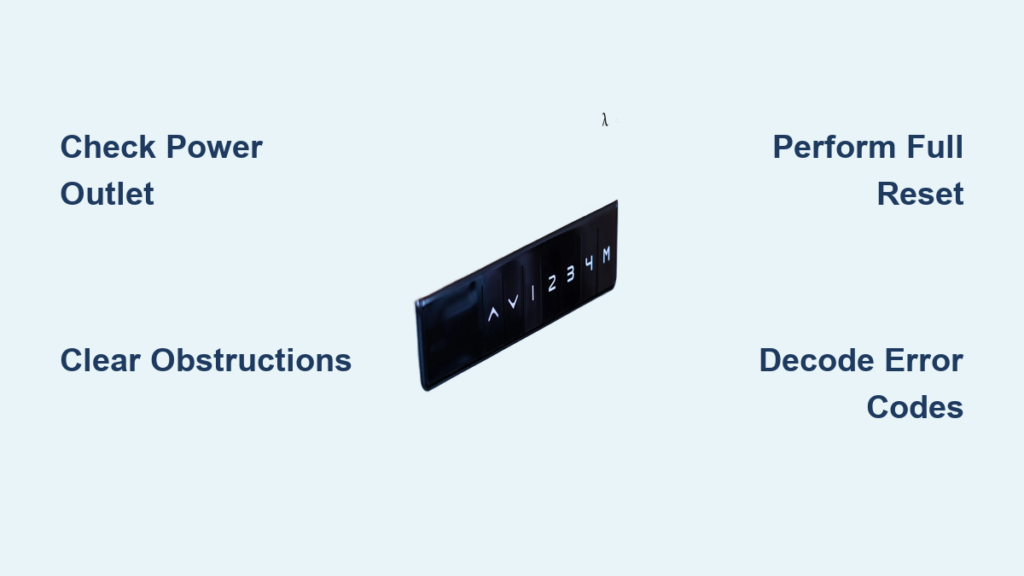
* On LCD keypads: Look for “ASr” (Auto-Setup Routine) on screen.
* On Advanced Paddle Keypads: You will see “RESET” appear.
Release the button once the message shows. - Press and hold Down again until movement occurs. The desk will lower slightly, rise slightly, then stop automatically.
- Test both Up and Down buttons. If the desk moves normally, the reset worked. If not, repeat Step 3 two more times.
Pro Tip: Always unplug the desk for 10 seconds before resetting if no lights appear on the keypad.
Why This Fix Works
The control box uses firmware to coordinate dual motors. Power interruptions, surges, or software hiccups can desynchronize the system. The reset forces a recalibration, often restoring full function without needing replacements.
Check Power Supply and Connections
A surprisingly common cause of a desk not raising is poor power delivery, not a faulty motor or control box.
Test These Power Points
- Verify outlet functionality: Plug in a lamp or phone charger.
- Ensure full insertion: Power cord must be fully seated in both wall outlet and desk grommet.
- Avoid GFCI/tripped breakers: Some outlets shut off during minor surges.
- Use a surge protector: Prevents damage from voltage spikes.
- Do not daisy-chain extensions: Use a direct wall outlet when possible.
Signs of Power Failure
- Keypad lights do not turn on
- No sound from motors
- Desk worked after unplugging and will not restart
Quick Test: Swap the power adapter with a known-working one (if available). If the desk powers up, the original adapter was faulty.
Diagnose Control Box Failure
If the reset fails and power is confirmed, the control box may be defective the most common hardware issue reported.
Symptoms of a Bad Control Module
- Desk completely unresponsive
- Only one leg moves
- Keypad flashes or shows error codes
- Intermittent operation (works sometimes)
Is the Control Box Under Warranty?
Yes. UPLIFT Desks include a 7-year limited warranty covering frame, motors, and control system (including control box and keypad). If your desk is under warranty, UPLIFT will ship a free replacement control module.
Replace the Control Box (User-Friendly Process)
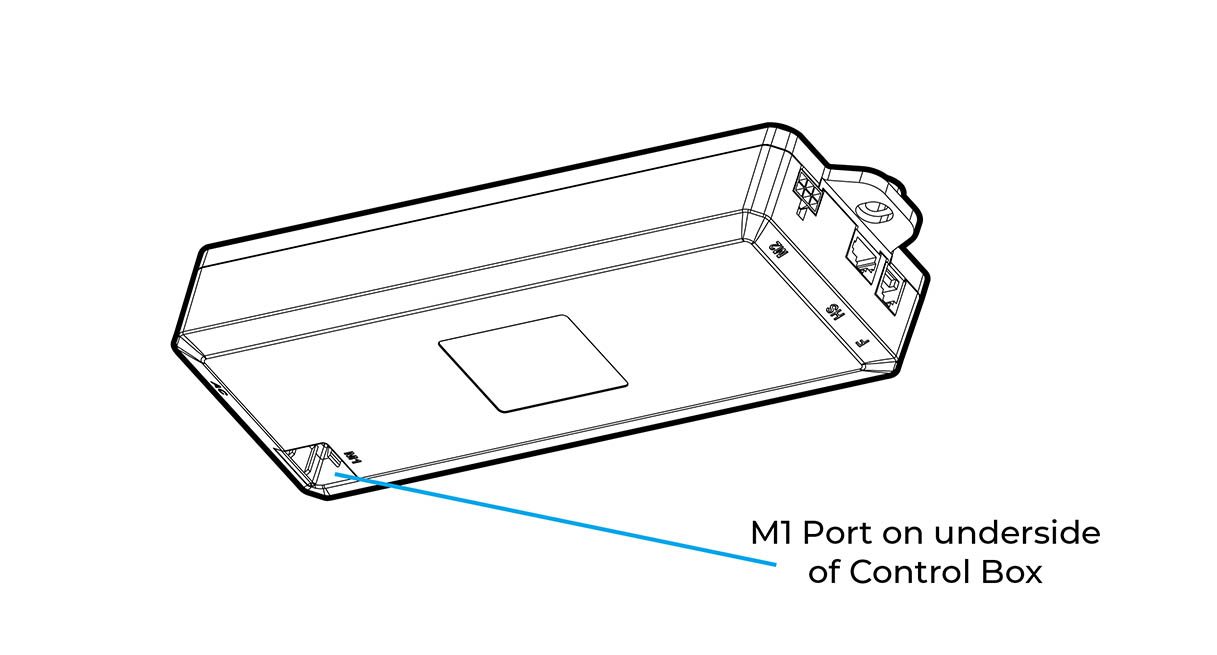
- Unplug the desk.
- Locate the control box (usually near the center grommet).
- Disconnect old module (no tools needed plug-and-play).
- Connect new module.
- Replug and perform a reset.
Support provides step-by-step video guides upon request.
Difficulty Level: Easy | Time Required: 5-10 minutes
Rule Out Obstruction Detection Lock
Your UPLIFT Desk has built-in safety sensors. Even minor resistance can trigger an automatic lockout, preventing upward movement.
Common Obstruction Triggers
- Carpet bunching under legs
- Cables snagged between frame and floor
- Uneven flooring causing leg drag
- Heavy items shifting during movement
How to Clear a False Lock
- Manually lift the desktop slightly (if safe) to relieve pressure.
- Clear all cables and obstacles.
- Perform the Quick Desk Reset again.
This often restores normal operation immediately.
Visual Cue: If the desk moves down but not up, obstruction lock is likely.
Test Keypad Functionality
A malfunctioning keypad may send no signal, or only partial commands, to the control box.
How to Check Your Keypad
- Press all buttons: Do lights illuminate?
- Try memory presets (if Advanced Keypad): Do they respond?
- Swap with a spare (if available): Test with a known-working unit.
Keypad Replacement Options
- Free under warranty
- $40-$60 out of pocket
- Plug-and-play installation (no tools)
Some users report keypad failures after 6-18 months of use, especially with frequent height changes.
No Manual Override: What to Do When Stuck Low
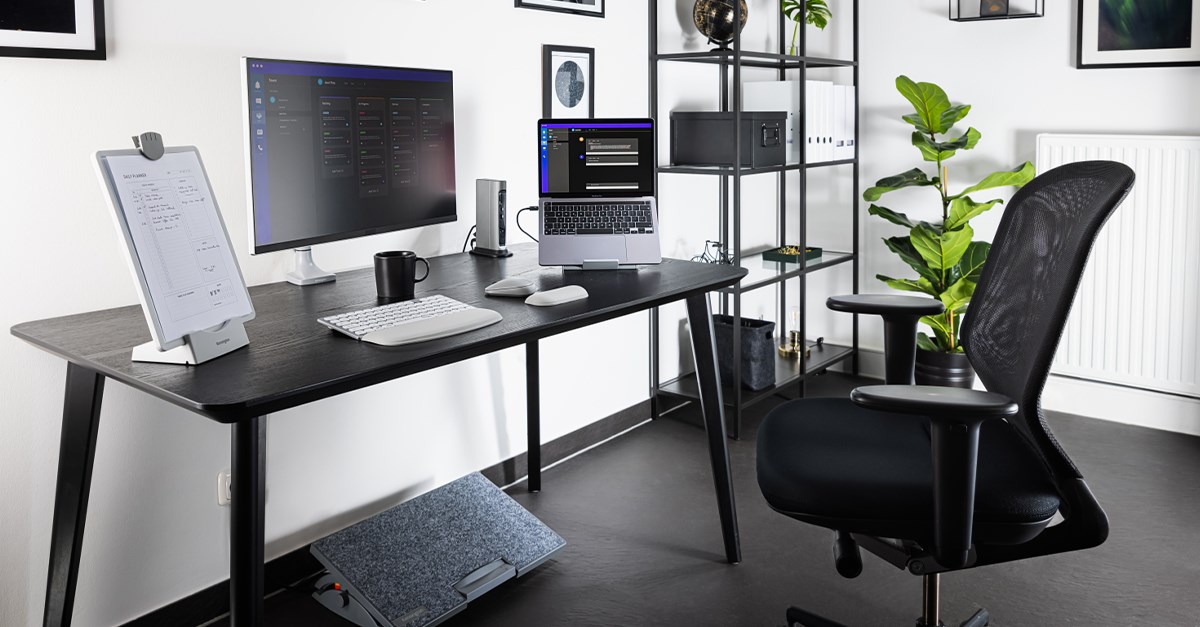
UPLIFT Desks Have No Manual Raise Option
Unlike crank desks, there is no way to manually raise an UPLIFT Desk. The dual-motor design requires electronic synchronization. Attempting to lift it by hand risks damaging motors or warping the frame.
UPLIFT Desk officially states: “Unfortunately, there’s no manual override.”
Temporary Workarounds While Waiting for Repair
When your desk is stuck too low, try these fixes to maintain productivity:
- Use risers or stands: Place books, boxes, or desktop risers under monitor and keyboard. Elevate only what you need for ergonomics.
- Install monitor arms: Adjust screen height independently. Frees up space and improves posture.
- Reposition peripherals: Move laptop, keyboard, and mouse to a secondary table or cart. Use a standing mat nearby for movement.
- Support sagging desks: If the desktop sags or feels unstable, place a sturdy shelf or stand underneath. Prevents further stress on motors.
User Tip: One Reddit user shared: “I stacked files under my keyboard so I could keep working not ideal, but saved my back.”
Contact UPLIFT Customer Support
If all else fails, get help directly from UPLIFT.
Support Hours and Contact Info
- Phone: 1-800-349-3839 (toll-free) or 512-614-3152
- Email: hello@upliftdesk.com
- Live Chat: Available on upliftdesk.com
- Contact Form: upliftdesk.com/contact
- Hours: Mon-Fri 8 AM-6 PM CT, Sat 9 AM-6 PM CT
What to Say When You Call
- Clearly describe: “Desk won’t go up, performs reset, no response.”
- Mention: Keypad lights, motor sounds, or error messages.
- Request: Control box inspection and replacement under warranty.
- Ask: For tracking info on replacement part.
Support typically ships replacements within 1-2 business days.
Prevent Future Failures
Avoid recurring issues with these proactive steps.
6 Best Practices to Keep Your Desk Working
- Reset after power outages: Always perform a Quick Desk Reset if the desk loses power.
- Stay within weight limits: Max load is 355 lbs (V2 models). Overloading strains motors and control systems.
- Organize cables properly: Use clips or sleeves to prevent snagging during height changes.
- Use a surge protector: Protects against voltage spikes that damage electronics.
- Avoid extension cords: Use direct wall outlets to ensure stable power.
- Update firmware if prompted: Some models allow updates via USB or keypad menus.
Monthly Maintenance Tip: Perform a reset once a month to keep motors synchronized.
Class Action Lawsuit Notice (2025)
A potential class action lawsuit is being pursued against manufacturers of UPLIFT and Jarvis electric desks.
Key Details
- Law Firm: ClassLaw DC
- Focus: Desks getting stuck, motor failures, keypad issues
- Eligibility: Purchases made since 2020
- Claim Site: classlawdc.com/2025/12/04/jarvis-uplift-electric-standing-desks-investigation
This reflects widespread reliability concerns, even among premium brands. If your desk failed early, you may qualify for compensation.
Final Checklist: Desk Won’t Go Up?
- Try the Quick Desk Reset (do it twice if needed)
- Check power outlet and cord connection
- Clear obstructions under legs and cables
- Test keypad response and lights
- Listen for motor sounds (one side working?)
- Contact UPLIFT Support for control box replacement
- Use risers or monitor arms as temporary fix
Frequently Asked Questions About UPLIFT Desk Won’t Go Up
Why does my UPLIFT Desk only go down but not up?
This is usually caused by obstruction detection lock or firmware desynchronization. Clear any cables or debris under the desk, then perform a Quick Desk Reset. If the problem persists, the control box may be faulty and require replacement.
How do I reset my UPLIFT Desk control box?
Press and hold the Down button for 10 seconds until “ASr” or “RESET” appears on the keypad. Release, then press and hold Down again until the desk lowers slightly, rises, and stops. Test both buttons afterward.
Is the control box covered under UPLIFT warranty?
Yes. UPLIFT Desks come with a 7-year limited warranty covering the frame, motors, and control system (including control box and keypad). Replacement control modules ship free if the desk is under warranty.
Can I manually raise my UPLIFT Desk when it won’t go up?
No. UPLIFT Desks have no manual override option. The dual-motor design requires electronic synchronization. Attempting to lift by hand can damage motors or warp the frame.
How long does UPLIFT support take to ship replacement parts?
UPLIFT typically ships replacement control modules within 1-2 business days. You can track your shipment by requesting tracking info when you contact support.
What should I do if my desk is stuck in a low position?
Use temporary workarounds like monitor arms, desktop risers, or a secondary surface for your keyboard and mouse. Contact UPLIFT Support immediately to request a control box replacement under warranty.
Key Takeaways for Fixing Your UPLIFT Desk
The most effective solution for an UPLIFT Desk that won’t go up is the Quick Desk Reset, which resolves approximately 70% of reported issues without requiring part replacement. Power supply problems, obstruction detection, and control box failures are the primary causes when resets do not work. Since these desks lack a manual override mechanism, timely troubleshooting is essential to avoid being stuck at an uncomfortable height. Contact UPLIFT Customer Support at 1-800-349-3839 for warranty-covered replacement parts, and consider using monitor arms or risers as temporary solutions while waiting for repairs.