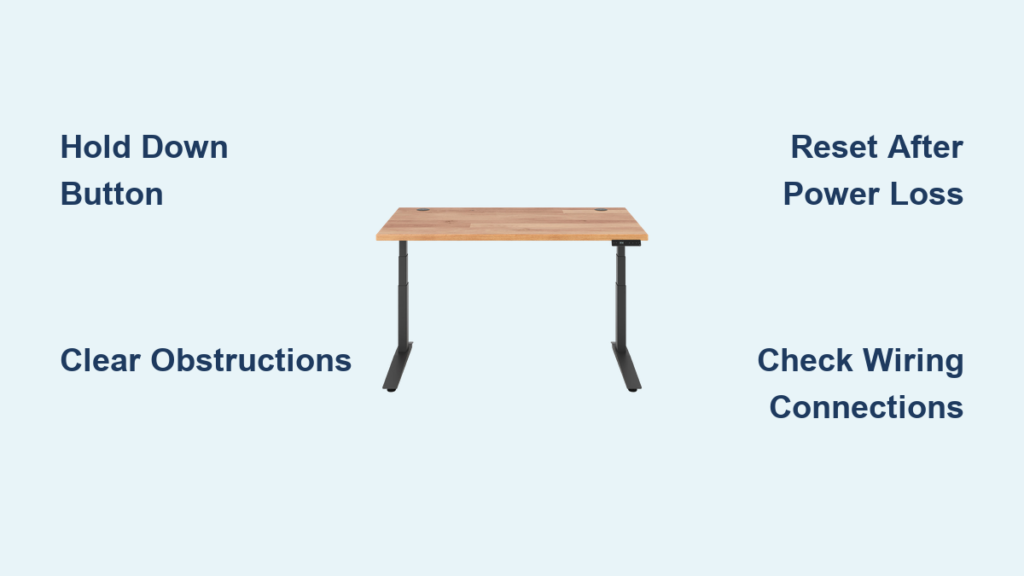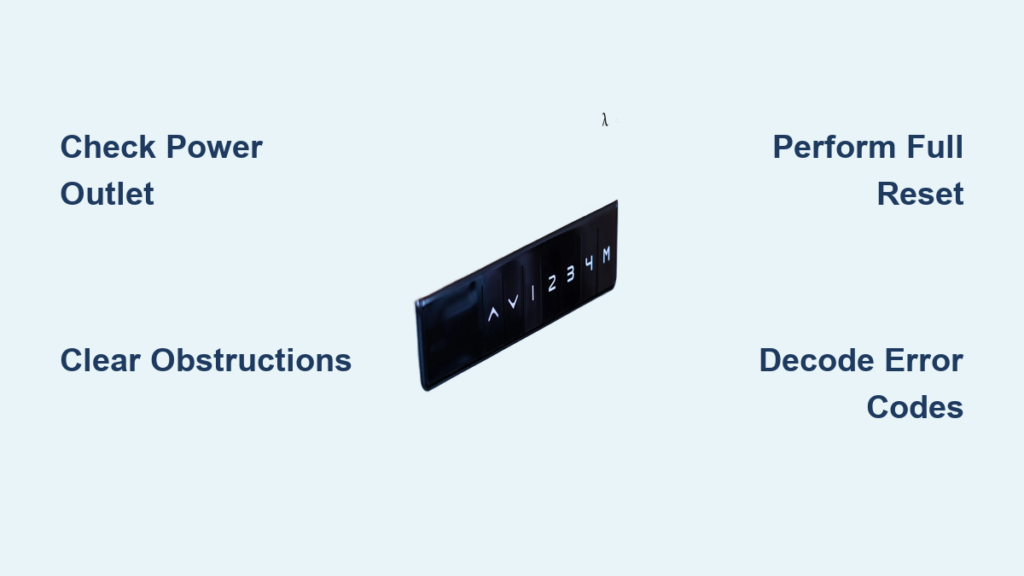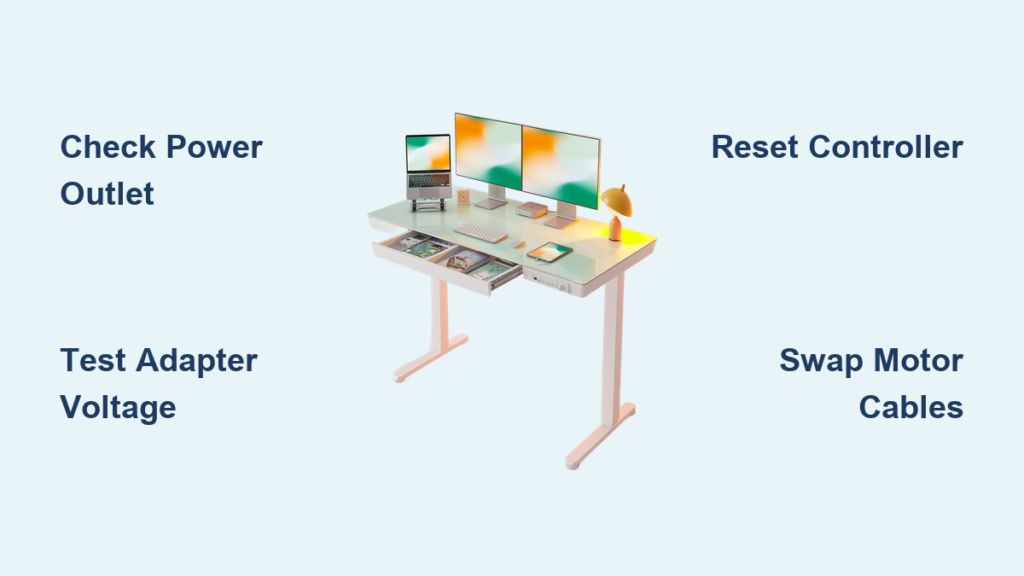
You’re ready to sit after a long stretch of standing, but your desk refuses to lower. It hums when you press “up,” yet stays frozen when you hit “down.” No movement. No response. Maybe an error code blinks on the control panel. You’re not alone—a standing desk that won’t go down is one of the most common issues with electric height-adjustable desks. The good news? Over 85% of these problems are fixable without tools or technical expertise.
This guide cuts through the noise and delivers proven, step-by-step solutions based on technical documentation from major manufacturers. Whether your desk stops mid-lower, reverses slightly, or won’t budge at all, you’ll learn how to diagnose, reset, and restore full function—often in under five minutes. You’ll also discover how to prevent future issues, interpret error codes, and know when to contact support.
Check for Physical Obstructions Blocking the Desk
Your desk might be refusing to lower because something is blocking its path. Modern desks use collision detection that stops descent when resistance exceeds 5–10 lbs, and this safety feature is the most common culprit behind a standing desk that won’t go down.
Desk Stops at the Same Height Every Time
If your desk begins to lower but halts abruptly at a consistent point, something is physically blocking its path. The desk detects resistance and locks downward movement to prevent damage.
Common culprits include:
- Office chair, especially high-back or adjustable base models
- Mobile file cabinet or printer stand positioned underneath
- Thick carpet, rug, or floor mat creating friction
- Power strips, monitor mounts, or under-desk accessories touching the floor
- Cables caught between legs or under the crossbar
What to do:
- Lower the desk manually or use the “Down” button until it stops
- Crouch down and inspect all four corners thoroughly
- Look for subtle contact points—even a cable bundle pressing against a leg can trigger the safety system
- Clear the area completely, then attempt to lower again
After removing an obstruction, the desk may still refuse to move. You need to perform a manual reset to clear the triggered safety state.
Clear Collision Detection Lock After Obstacle Removal
When collision detection activates, many desks reverse upward by 0.5–1 inch and lock out further downward commands. This prevents repeated impact but can confuse users who think the problem is solved.
Desk Reverses Slightly After Stopping
Watch for these behavior signs indicating collision detection has triggered:
- Desk stops lowering abruptly
- Moves up slightly, about half an inch
- Keypad becomes unresponsive to the “Down” button
- “Up” button still works normally
Fix it:
- Remove any obstruction from beneath the desk
- Press and hold the “Up” button for 3–5 seconds to disengage the lock
- Try lowering again
If that fails, proceed to a full system reset, which is the most reliable way to clear collision memory and restore normal function.
Perform a Full System Reset to Recalibrate
A system reset recalibrates motor synchronization, clears temporary errors, and restores positional memory. This is the single most effective fix for a standing desk that won’t go down.
Hold Down Until It Dips and Rises
Follow these steps exactly:
- Remove all items from the desk, including monitors, CPU, and printers
- Unplug the power cord from the wall
- Wait 30 seconds—this is critical for capacitor discharge
- Plug the desk back into a working wall outlet, bypassing power strips
- Immediately press and hold the “Down” button
- Keep holding until the desk reaches its lowest position, continues down slightly (you may hear motor strain), automatically rises about half to one inch, and comes to a complete stop
- Release the button
Success is confirmed when the desk dips, then rises slightly. Do not release early—premature release leaves the desk uncalibrated and the problem will persist.
After the reset, reprogram your saved sitting and standing heights.
Decode Error Codes E3, E5, E66, and RES
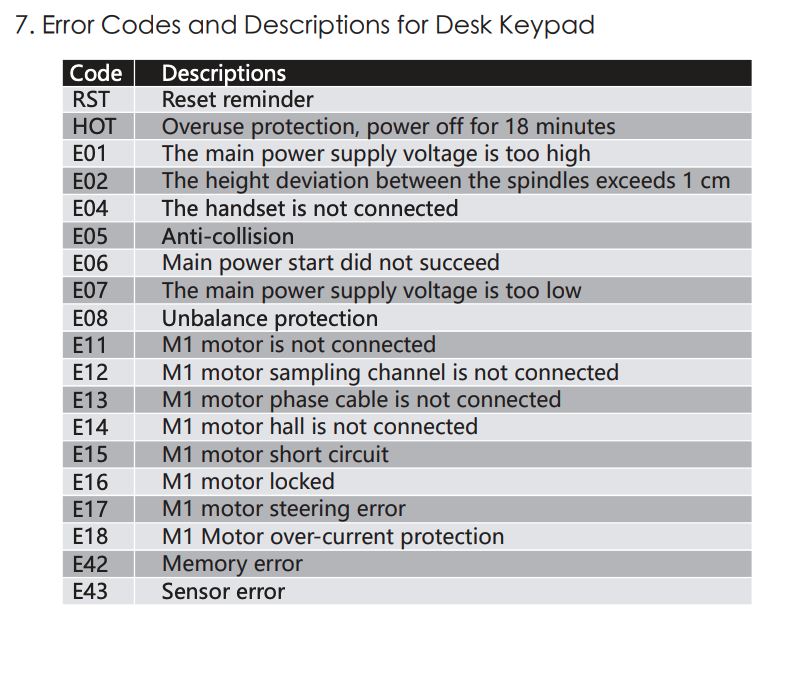
Error codes reveal the root cause of your standing desk won’t go down issue. Don’t ignore them—they provide precise diagnostic clues.
E3, E-3, or E33 Means Motor Communication Failure
This error means the control box cannot detect one or both motors. The causes include a loose motor cable, damaged connector, or faulty motor or control box.
Fix:
- Unplug the desk for 30 seconds
- Locate motor cables under the desk, labeled “Motor 1” and “Motor 2”
- Unplug and reseat both ends of each cable
- Inspect for bent pins or frayed wires
- Reconnect power and perform a full reset
Error E3 means the controller lost contact with a motor. Reseating cables fixes approximately 70% of cases. If E3 persists, contact the manufacturer—possible motor or control box failure.
E5 or E66 Means Overload or Thermal Lock
E5 indicates overcurrent, overheating, or firmware glitch. E66 is a cascading error that often follows E3.
Solution:
- Reduce desk load by removing monitors and printers
- Wait 18–20 minutes for the control box to cool
- Perform a full reset
Avoid rapid adjustments—most controllers have a 10% duty cycle, meaning 2 minutes of active movement followed by 18 minutes of rest.
RES or ReS Means Reset Mode Active
This means the desk is in calibration mode and requires a reset sequence completion. If stuck in this mode, unplug, wait 30 seconds, and restart the reset process.
Verify Power and Cable Connections
Power issues can mimic mechanical failure. Always verify the basics before assuming something is wrong with the motors.
Test the Outlet First
- Unplug the desk
- Plug in a lamp or phone charger to test the outlet
- If it doesn’t work, the outlet is dead
Never use extension cords or power strips during troubleshooting—use a direct wall outlet.
Check All Cable Connections
Loose wiring causes intermittent failure. Inspect these connection points:
- Handset to control box: Unplug and replug, check for bent pins
- Motor cables to control box: Reseat both “Motor 1” and “Motor 2”
- Power cord to control box: Ensure tight fit
- Internal splices if accessible: Look for loose or disconnected wires
Gently tug each cable—secure connections won’t pull out easily.
Reduce Load and Distribute Weight Evenly
Exceeding weight limits or uneven loading causes motors to stall, resulting in a standing desk that won’t go down.
Check Maximum Load Ratings
- Budget models: 150–200 lbs total capacity
- Mid-tier: 250–300 lbs total capacity
- Premium models: up to 355 lbs total capacity
Total load includes the desktop (30–50 lbs), monitors (10–30 lbs each), and all accessories. Keep total load under 80% of max capacity to prevent strain.
Fix Weight Imbalance
Weight concentrated on one side causes leg desynchronization. Center monitors over the central cross-brace, mount the CPU under the desk, and avoid placing heavy items on front or back edges.
A 40-lb PC tower on one leg can overload that motor’s torque capacity and trigger protective shutdown.
Disable Programmable Lower Height Stop
You may have set a programmable minimum height called a “Lower Container Stop” to avoid hitting furniture. This feature prevents the desk from going below a certain point.
Desk Stops Above the Lowest Point
Symptoms include the desk refusing to go below a certain height while upward movement works fine, and no error codes appearing.
How to disable:
- Perform a full system reset (hold “Down” after reaching lowest point)
- Or access programming mode—UPLIFT users should hold “Down” for 10 seconds until “ASr” appears, then release and hold “Down” again
Check your manual since each brand has a unique sequence.
Inspect for Pinched or Damaged Cables
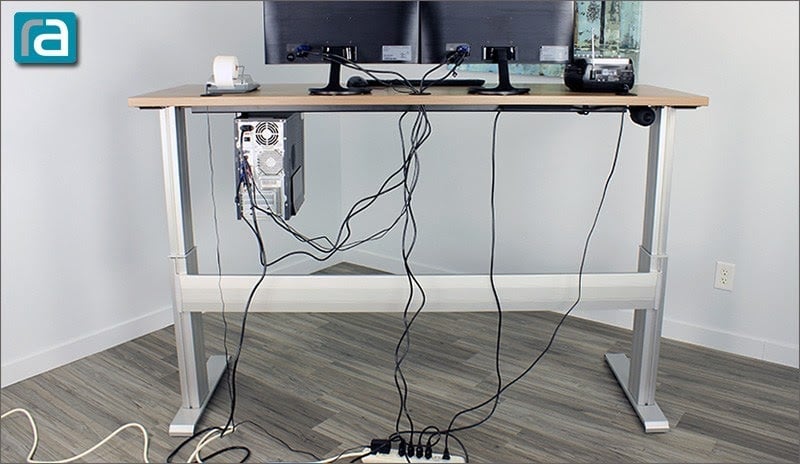
Cables routed near moving parts can get pinched, cutting power or signals entirely.
Desk Works Intermittently
Inspect cables between the control box and motors, the handset cord running through the grommet, and the power cord near the floor.
Look for kinks or compression, exposed wires, and tension when legs move. Prevent future issues by using cable trays or sleeves, securing cables to the frame with zip ties, and leaving slack near connections.
Never let cables dangle or rest under the legs.
Allow Duty Cycle Recovery Time
Most controllers have a 10% duty cycle: 2 minutes of movement followed by 18 minutes of rest. This applies to TiMOTION, Jiecang, and Linak controllers.
Desk Stopped After Repeated Use
Symptoms of overload include the desk stopping mid-cycle with no error lights, then returning to function after 15–20 minutes.
Fix:
- Let the desk rest for 18 or more minutes
- Perform a reset after cooldown
Prevention includes using presets instead of holding buttons, avoiding rapid up/down cycling, and ensuring the control box has airflow without being enclosed in a tight space.
Diagnose Internal Motor or Control Box Failure
If all else fails, suspect internal hardware damage.
One Leg Won’t Move or Grinding Noise
- Burnt motor signs: One leg immobile, no sound, burning smell. Test by listening for hum when pressing “Down.”
- Damaged spindle or gear signs: Grinding, jerking, visible scoring on inner tube. Clean with dry cloth; contact support if damaged.
- Faulty control box signs: No power, persistent E3/E5 errors, no motor response. Test by reseating all cables and trying a known-good power source.
If you’ve cleared obstructions, verified power, reseated cables, performed a reset, and waited for cooldown—and the desk still won’t go down—contact manufacturer support.
Contact Manufacturer Support When Needed
Reach out for help if reset fails after 2–3 attempts, one motor doesn’t respond, there’s a burning smell or visible damage, persistent E3, E5, or E66 errors appear, or the desk is under warranty.
For UPLIFT Desk support, call 800-349-3839 (Mon–Fri 8AM–6PM CT, Sat 9AM–6PM CT) or email hello@upliftdesk.com. Other brands: visit the official website for RMA and troubleshooting.
Prevent Future Issues With Regular Maintenance
Follow these habits to avoid repeat failures with your standing desk that won’t go down.
Monthly Checks
- Inspect cable connections and tighten any loose fittings
- Clean dust from leg tubes
Quarterly Care
- Wipe inner columns with a dry cloth
- Apply manufacturer-approved lubricant if recommended
Annual Reset
- Perform a full reset to recalibrate motors
- Reprogram all presets
Best Practices
- Use presets instead of holding buttons
- Keep load under 80% capacity
- Position desk away from foot traffic
- Use a surge protector rated for motorized furniture
Look for UL 962 certification to ensure safe electrical design.
Frequently Asked Questions About Standing Desk Won’t Go Down
Why does my standing desk only go down and not up?
This typically means the desk lost power and its positional memory defaulted to downward-only mode for safety. A full reset restores normal function.
Will resetting my standing desk erase my saved height presets?
Yes. A reset clears all memory, including saved heights. You must reprogram your preferred sitting and standing positions afterward.
How long should I hold the down button during a reset?
Hold until the desk reaches its lowest point, then continue holding for an additional 10–15 seconds. A shudder or click indicates success.
What if the reset doesn’t fix the problem?
If the desk remains unresponsive or shows persistent error codes like E3, check all cables, verify power, and contact the manufacturer. Hardware replacement under warranty may be required.
Does this reset process work for all standing desk brands?
The general method applies to most dual-motor electric desks. However, exact steps may vary. Always consult your model’s manual first.
Can I force the desk down manually?
Never force the desk manually. You risk gear damage and voiding your warranty. Always use the troubleshooting steps outlined above.
Key Takeaways for Fixing Your Standing Desk That Won’t Go Down
A standing desk that won’t go down is rarely a hardware death sentence. Over 90% of cases resolve with a simple reset or obstruction clearance. Start with the basics: unplug, wait 30 seconds, plug in, and hold “Down” until it dips and rises. Clear cables, reduce weight, and reseat connections if needed. Save your presets, avoid rapid cycling, and perform an annual reset to keep your desk running smoothly.
If nothing works, contact support—most issues are covered under warranty. Don’t force the desk manually; you risk gear damage and voiding your warranty. With the right steps, your desk will be back to seamless up-and-down motion in minutes.