You sit at a desk for hours every day, perhaps 8, 10, or more. Over time, those hours add up to thousands of positions that can either protect or damage your body. If your posture is off, even slightly, you are setting yourself up for neck pain, back strain, carpal tunnel, and chronic fatigue. The good news is that how to sit at a desk properly is not complicated. With a few smart adjustments and consistent movement, you can work comfortably, stay pain-free, and protect your long-term health.
This guide breaks down exactly how to sit at a desk with optimal ergonomics, from foot placement to monitor height, chair setup to microbreaks. You will learn not just the ideal posture, but how to sustain it through movement, smart tools, and daily habits. Whether you are working from home or in an office, using a laptop or dual monitors, this step-by-step plan will help you sit smarter, move more, and feel better.
Align Your Body from Feet to Head
Proper sitting starts at the ground and builds upward. Each body part affects the next, so misaligned feet lead to hip tilt, which throws off your spine. Follow this sequence to create a stable, neutral posture.
Feet Flat, Knees at 90°
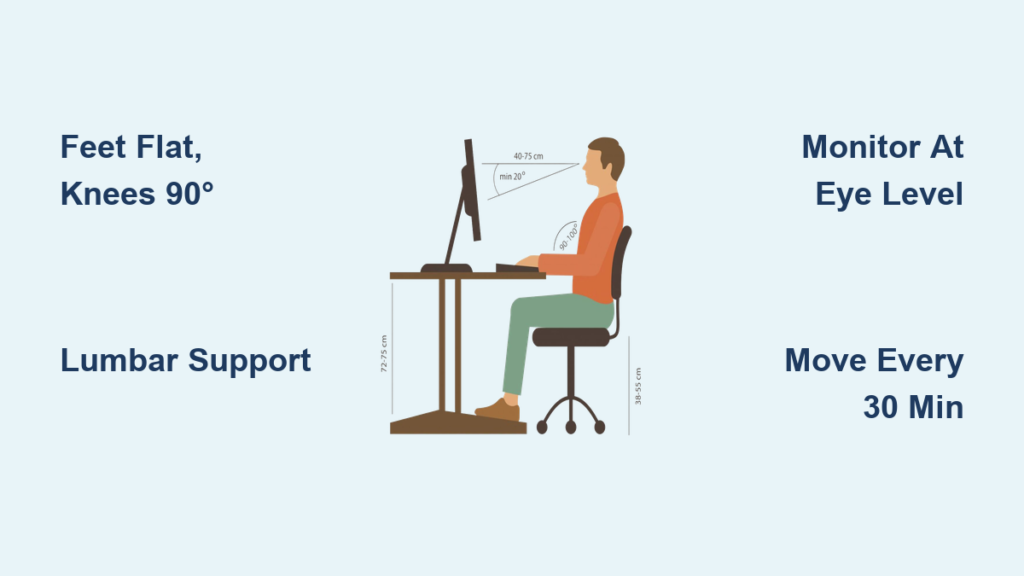
Place both feet flat on the floor with knees bent at approximately 90 degrees. There should be 2 to 3 fingers width between the back of your knees and the front edge of the chair to avoid cutting off circulation or compressing nerves.
If your feet do not reach the ground, which is common for shorter users or when the chair is raised, use a footrest, stack of books, or a sturdy box. Dangling feet destabilize your pelvis and increase pressure on your lower back.
Pro tip: Position your feet directly under your hips instead of slightly forward. This helps balance your center of gravity and reduces forward slouching.
Sit Back, Pelvis Neutral
Always sit fully back in your chair. Let your buttocks press against the backrest to support your lumbar spine and maintain the natural curve of your lower back. Your pelvis should be neutral, not tilted forward or backward.
To check your pelvic position, slide your hands under your sitz bones, which are the bony points beneath your glutes. In neutral alignment, they should point straight down and bear weight evenly with your thighs. If your chair is too deep, you will perch on the edge and lose back support.
Upgrade option: A saddle chair or Scandinavian-style seat encourages a more open hip angle, promotes pelvic mobility, and naturally engages your core.
Support Your Lower Back
Your lumbar spine has a natural inward curve that must be supported. Without it, discs compress, muscles fatigue, and pain follows. Use your chair is built-in lumbar support to gently cradle the small of your back, not force an exaggerated arch.
If your chair lacks support, use a rolled-up towel, small pillow, or inflatable lumbar cushion. The backrest should fit snugly into your lower spine with no gaps. For extra stability, lightly draw your navel toward your spine to activate your core and reinforce neutral alignment.
Arms at 90°, Shoulders Relaxed
Keep your elbows bent at 90 degrees, with upper arms hanging naturally at your sides. Your shoulders should be level and relaxed, not hunched or lifted toward your ears. If your armrests push your shoulders up, lower or remove them.
The keyboard should sit 4 to 6 inches from the desk edge and close enough that you do not have to reach. This keeps your elbows at 90 degrees and wrists neutral.
Wrist alignment tip: Imagine holding a small bird, firm enough to hold, gentle enough not to crush. That is the ideal typing pressure. Avoid bending your wrists up, down, or sideways.
Head Balanced, Neck Aligned
Forward head posture is one of the most damaging habits. For every inch your head moves forward, the load on your neck doubles, adding up to 10 extra pounds of force on your cervical spine.
To prevent this, position the top of your monitor or top third of the screen at or slightly below eye level. Sit about arm is length away, which is 18 to 24 inches, to reduce eye strain. Center the screen so you do not twist your neck.
If you use bifocals or progressive lenses, lower the monitor by 1 to 2 inches so you can see through the lower portion of the lens without tilting your head back.
Laptop users: Never type on a laptop screen. Use a laptop stand to raise the screen to eye level, then connect an external keyboard and mouse.
Optimize Your Workstation Setup

Even perfect posture fails if your desk, chair, or equipment are misaligned. Here is how to set up your workspace for long-term comfort.
Adjust Chair Height Correctly
Set your seat height so your feet are flat on the floor or footrest, knees are at approximately 90 degrees, and thighs are parallel to the floor. A 174cm person using a standard 75cm desk may need to raise the chair for proper elbow height, which would require a footrest to support the legs.
Match Desk Height to Forearm Level
Your desk should allow your forearms to rest parallel to the floor when typing. Many standard desks are too high, forcing shoulder elevation or wrist bending.
Solutions include lowering the chair and using a footrest, installing a keyboard tray to lower the typing surface, raising the chair and using an external keyboard and mouse with the laptop on a stand, or investing in a sit-stand desk for dynamic adjustment.
Position Keyboard and Mouse Strategically
The keyboard should be centered, 4 to 6 inches from the desk edge, at elbow height with wrists neutral. The mouse should be placed immediately next to the keyboard at the same level, with no reaching.
Ergonomic upgrades to consider:
- Tenkeyless keyboard removes the number pad and brings the mouse closer
- Vertical mouse or trackball reduces wrist pronation
- Split keyboard allows natural shoulder width and reduces ulnar deviation
Set Monitor for Eye Comfort
For a single monitor, position the top third at eye level, centered, and 18 to 24 inches away. For dual monitors, place the primary screen in front and the secondary angled inward at the same height. Avoid glare by positioning the screen perpendicular to windows.
Follow the 20-20-20 rule: Every 20 minutes, look at something 20 feet away for 20 seconds to reduce eye strain.
Fix Common Sitting Mistakes

Even small errors can cause big problems over time. Here are the most common mistakes and how to fix them.
Legs Crossed Leads to Pelvic Tilt and Poor Circulation
Crossing legs shifts your pelvis, rotates your spine, and reduces blood flow. It also increases the risk of varicose veins. Keep both feet flat on the floor or footrest instead.
Perching on Chair Edge Causes Slouching and Fatigue
Sitting on the edge of your chair removes back support and forces your muscles to work harder. Sit fully back with lumbar support engaged.
Monitor Too Low Triggers Neck Strain
Looking down more than 10 to 30 degrees strains your neck and accelerates disc degeneration. Raise the monitor with books, a stand, or an adjustable arm.
Keyboard Too Far Creates Shoulder Protraction
Reaching for the keyboard pulls your shoulders forward, rounds your upper back, and strains rotator cuffs. Bring the keyboard closer or install a keyboard tray.
Static Sitting Over 30 Minutes Leads to Stiffness
Holding any posture too long, no matter how perfect, causes muscle fatigue, joint stiffness, and reduced nutrient flow to spinal discs. Move every 30 to 45 minutes.
Move Every 30 Minutes: The Real Secret
The best posture is your next posture. Even perfect alignment becomes harmful when held too long.
Take Microbreaks Daily
Every 30 to 45 minutes, take 1 to 5 minutes to move. This pumps nutrients into spinal discs, prevents muscle adhesions, and reduces mental fatigue.
Simple microbreak exercises:
- Seated calf raises, 10 to 15 repetitions
- Shoulder rolls backward to squeeze shoulder blades
- Neck stretches including side tilt, chin tuck, and look up
- Spinal twists with hips forward and torso rotating left and right
- Ankle circles
- Wrist pumps
- Doorway chest stretch for 30 seconds per side
- Chair squats, stand and sit slowly 10 times
- Wall push-ups or desk dips
- Pelvic tilts and seated forward folds
Pro tip: Set phone alarms, use break apps like Stretchly or Time Out, or drink more water to prompt natural movement.
Use a Sit-Stand Desk Wisely
Alternate sitting and standing to reduce strain. Start with 30 to 60 minutes of standing, gradually increasing. Do not exceed 4 hours of standing per day, as too much causes foot pain, varicose veins, and back stiffness.
Use an anti-fatigue mat to encourage micro-movements. Keep elbows at 90 degrees, monitor at eye level, and wear supportive shoes.
Pro hack: Leave your sit-stand desk in the standing position overnight to encourage you to start the day upright.
Try a Walking Pad Under Your Desk
A walking pad lets you walk slowly, 1 to 2 miles per hour, while working. Benefits include increased calorie burn, improved focus and circulation, and reduced stiffness. Pair it with a standing desk for maximum benefit.
Affordable Ergonomic Tools and Hacks
You do not need expensive gear to sit well. Use these budget-friendly tools and upgrades.
| Tool | Budget Fix | Premium Option |
|---|---|---|
| Lumbar support | Rolled towel | Inflatable cushion or Neo G brace |
| Footrest | Books or storage box | Adjustable-height footrest |
| Monitor arm | Stack of books | Gas-spring monitor arm |
| Keyboard tray | DIY shelf | Under-desk sliding tray |
| External keyboard and mouse | Standard USB | Split keyboard plus vertical mouse |
| Document holder | Binder clip plus book | Adjustable desktop holder |
| Anti-fatigue mat | Foam pad | Gel-filled mat |
Cost-saving tip: Books serve as a monitor riser, a box becomes a footrest, and a towel works as a lumbar roll.
Special Situations and Solutions
Laptop Users: Avoid the Neck-Shoulder Trade-Off
Laptops force a choice between looking down, which causes neck pain, or raising arms, which causes shoulder strain. Use a laptop stand or books to raise the screen to eye level, then connect an external keyboard and mouse. Use a footrest if the chair is too high.
Bifocal Wearers: Lower the Monitor
If you wear progressive lenses, standard eye-level monitors force you to tilt your head back. Lower the monitor by 1 to 2 inches so the top sits slightly below eye level.
Chronic Pain: Seek Professional Help
If discomfort persists despite adjustments, get a professional ergonomic assessment. See a physical therapist for muscle imbalances or consider Pilates for postural retraining.
Posture Braces: Use as Training Aids
Wrist supports help with carpal tunnel, back braces provide lumbar support and feedback, and clavicle braces pull shoulders back. Do not rely on braces long-term. Use them to build awareness while strengthening postural muscles.
Stay Mentally Fresh at Your Desk
Physical comfort matters, but so does mental well-being. Many users report emotional fatigue, feeling trapped or drained by desk work.
Shift Your Mindset
Practice gratitude by reflecting on how desk work compares to more physically demanding jobs. Reframe your situation as a privilege. Avoid main character syndrome, as the job does not need you, which reduces pressure and resentment.
Make Work Engaging
Turn tasks into games by challenging yourself to finish faster or more efficiently. Learn during downtime using podcasts and quizzes. Pursue flow state by getting excited about solving problems and anticipating eureka moments.
Change Your Environment
Work from different spots like a meeting room, cafeteria, or quiet corner. Use ambient sound like low-volume music or nature sounds to improve mood. Add humor with office pranks to keep spirits high.
Advocate for Better Workplace Ergonomics
If your employer resists upgrades, request a sit-stand desk as a reasonable accommodation with a doctor is note. Ask for a free ergonomic assessment, as many companies offer them. Propose low-cost solutions like footrests, walking pads, or monitor arms.
Protect Your Long-Term Health
Move Outside Work Hours
Stretch daily, focusing on hip flexors, hamstrings, chest, and neck. Strengthen core and glutes, as these muscles support posture and reduce back pain. Try Pilates or physical therapy to improve body awareness and correct imbalances.
Prioritize Work-Life Balance
Maximize non-work time by walking the dog, doing chores, or exercising during breaks. Sleep and eat well, as poor recovery amplifies the damage of sitting.
Consider Career Changes If Needed
Negotiate remote or hybrid work to reduce office confinement. Transition to active roles if pain or burnout becomes unmanageable.
Quick Checklist: How to Sit at a Desk Properly
- Feet flat on floor or footrest, knees at 90 degrees
- Sit fully back, pelvis neutral, lower back supported
- Monitor top at or slightly below eye level
- Keyboard close, elbows at 90 degrees, wrists neutral
- Mouse next to keyboard at same height
- Shoulders relaxed, arms at sides
- Take microbreaks every 30 to 45 minutes
- Alternate sitting and standing, maximum 4 hours standing
- Use accessories as needed, footrest, lumbar roll, monitor arm
- Listen to your body, discomfort means it is time to adjust or move
Frequently Asked Questions About How to Sit at a Desk
What is the ideal sitting posture at a desk?
The ideal posture involves feet flat on the floor or footrest with knees at 90 degrees, sitting fully back in the chair with a neutral pelvis, lower back supported by lumbar support, shoulders relaxed, and the head balanced over the spine with the monitor at eye level.
How often should I take breaks from sitting?
Take microbreaks every 30 to 45 minutes. Stand, stretch, or walk for 1 to 5 minutes to pump nutrients into spinal discs and prevent muscle fatigue.
What is the best desk setup for laptop users?
Use a laptop stand to raise the screen to eye level, then connect an external keyboard and mouse. This prevents the neck strain from looking down and the shoulder strain from typing with the laptop on a desk.
Should I use a sit-stand desk?
Yes, alternating between sitting and standing reduces strain. Start with 30 to 60 minutes of standing and do not exceed 4 hours of standing per day to avoid foot pain and varicose veins.
How do I know if my monitor is at the correct height?
The top third of your monitor should be at or slightly below eye level. If you use bifocals, lower it an additional 1 to 2 inches so you can see through the lower portion of your lenses without tilting your head back.
Key Takeaways for Sitting Smarter at Your Desk
Proper desk ergonomics is about alignment, movement, and consistency. Start with feet flat, knees at 90 degrees, and sit fully back in your chair with lumbar support. Position your monitor at eye level, keep your keyboard close, and take microbreaks every 30 to 45 minutes. Small changes like raising your monitor by 2 inches, adding a footrest, or standing for a few minutes each hour can transform your comfort, energy, and long-term health. Your body is designed to move, so prioritize frequent position changes over perfect static posture. Invest in how you sit today, and your body will thank you for decades to come.