
Is your electric standing desk unresponsive, drifting off-center, or failing to remember height settings? You’re not alone. Many users face these issues after prolonged use or software glitches. The good news is that resetting your adjustable desk can restore smooth operation in under five minutes. This guide walks you through the exact steps to reset your desk, troubleshoot common problems, and avoid mistakes that could interrupt the process.
Whether your desk won’t move, ignores presets, or jerks unevenly, a proper reset often fixes it. No tools required.
Manual Reset Procedure
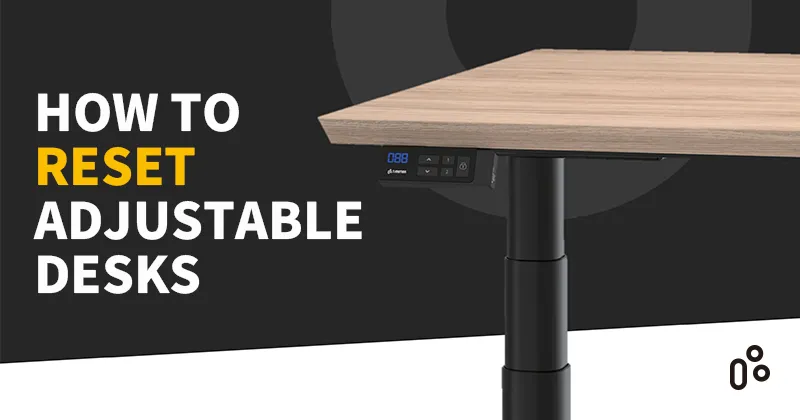
Follow this universal reset method for most electric standing desks. It clears memory errors, recalibrates motors, and realigns the lifting columns.
Step 1: Prepare the Desk
Clear the area under the desk to prevent any obstruction during the reset process. Unplug the power cord from the wall outlet. Wait exactly 30 seconds before reconnecting power. This waiting period allows the internal capacitors to discharge and clears stored errors in the system.
Skipping the wait time is the most common mistake. Plugging in too early prevents the system from resetting properly.
Step 2: Verify Connections
With the desk unplugged, inspect all cables and ensure they are securely attached. Check the control switch cable and the motor connections. Look for any frayed, bent, or loose connectors, especially near joints or bends.
Reconnect any loose cables before proceeding. A poor connection can mimic motor failure and cause confusion during troubleshooting.
Step 3: Execute the Reset
Plug the power cord back into the wall socket. Press and hold the down-arrow button on the control pad. Keep holding as the desk lowers fully to its lowest position.
Continue holding the button until the desk dips slightly, rises a few inches, and stops moving. Release the button once movement ends. This dip-and-rise motion confirms the reset is complete and the desk has recalibrated its lowest position.
Pro Tip: After resetting, reprogram your preferred heights. Most desks allow 2-4 memory presets via the M button.
Troubleshooting Common Reset Issues

Even with correct steps, problems can occur. Use these fixes to overcome frequent hurdles.
Desk Won’t Start the Reset
Power supply not delivering: Test the wall outlet with another device to confirm it works. Try a different power cord if available. Ensure the power adapter is rated for your desk model.
Control panel unresponsive: Check if the display is lit. If not, the control box may be faulty. Inspect the cable between the panel and control box and replace if damaged.
Reset Process Stops Early
Premature button release: You must hold the down arrow until the dip-and-rise action completes. Releasing too soon interrupts calibration and leaves the desk in an uncalibrated state.
Power interruption during reset: Use a direct wall outlet and avoid extension cords or power strips. Voltage drops can halt the process. Plug into a stable circuit.
Desk Moves Unevenly After Reset
Legs are misaligned: After reset, visually confirm both legs reach the same height. If one lags, clean the guide rails and check for debris blocking the movement.
Motor calibration failed: Repeat the reset process a second time. If uneven motion persists, one motor may be failing and you may need to contact support.
Model-Specific Reset Tips
While most desks follow the same reset logic, some brands have slight variations worth knowing.
Uplift Desk Reset Steps
Hold the down button for 20 or more seconds until the desk dips and rises. Uplift models often flash the display during reset, which is normal. Reprogram presets immediately after the reset completes.
Fully Kasper Desk Reset
Press and hold both up and down arrows for 10 seconds before starting the down move. Then proceed with the standard reset by holding down until the dip-and-rise occurs.
VariDesk Pro Reset
VariDesk Pro uses auto-calibration at power-on and requires no manual reset. If malfunctioning, cycle power three times quickly to trigger recalibration.
Always refer to your manufacturer’s manual for exact instructions. Brand-specific firmware may alter reset behavior.
When to Factory Reset the Control Box

If the desk still misbehaves after a standard reset, a factory reset may be needed. This erases all settings and returns the control system to default.
Access factory reset mode by unplugging the desk for 30 seconds. Plug it back in, then press and hold M plus the down arrow for 10 seconds. Wait for the display to blink or a reset tone to sound.
After this, retrain the desk by setting new height presets.
Warning: A factory reset removes all user memory. You will need to re-enter your favorite heights.
Prevent Future Reset Needs
Frequent resets signal deeper issues. Use these habits to keep your desk running smoothly.
Monthly Maintenance Routine
Wipe down lift columns with a dry microfiber cloth. Vacuum around the base to remove dust and debris. Check cable tension and connections regularly.
Avoid Common Damage Risks
Do not overload the desktop beyond weight limits, which are usually 150-250 lbs. Never place feet on crossbars or hang heavy items from the frame. Use surge protectors to prevent electrical spikes.
Update Desk Firmware
Some smart desks offer firmware updates via USB or Bluetooth. Updated software improves stability and adds features. Check the manufacturer’s website for your model number and update instructions.
Signs Your Desk Needs Professional Repair

Resetting won’t fix hardware failures. Watch for these red flags.
Motor makes grinding noise: This indicates worn gears or internal damage. Continuing to use it may burn out the motor completely.
One leg doesn’t move: This could be a dead motor, broken wiring, or stripped lead screw. Test by swapping motor cables at the control box if you are comfortable doing so.
Control box smells like burnt plastic: Unplug immediately. This signals electrical failure and can pose a fire risk. Do not attempt further resets.
In these cases, contact the manufacturer or authorized repair center. Many brands offer 5-7 year warranties.
Final Reset Checklist
Before calling support, run through this quick verification.
Power cord securely plugged in. All internal cables connected. 30-second wait observed. Down-arrow held until dip-and-rise. No obstructions under desk. Presets reprogrammed after reset.
If all steps are correct and the desk still fails, the issue likely lies in the motor, control board, or power supply.
Frequently Asked Questions About Resetting Adjustable Desks
How long does a desk reset take?
A standard reset takes under five minutes. Most of that time is spent waiting for the 30-second power cycle.
Will resetting delete my height presets?
A standard reset clears previous height memory. You will need to reprogram your preferred heights after completing the process.
Why does my desk dip and rise during reset?
This dip-and-rise motion is normal. It indicates the control box is recalibrating the lowest position and clearing stored errors.
Can I reset my desk without the control panel?
Most adjustable desks require the control panel to perform a reset. If the panel is completely unresponsive, the issue may be a faulty control box that needs replacement.
How often should I reset my standing desk?
Only reset when problems occur. Monthly resets are not necessary unless you experience consistent issues with movement or presets.
What should I do if the reset doesn’t work?
Check all cable connections and try a different wall outlet. If the problem persists, the motor or control box may be faulty and require professional repair.
Key Takeaways for Resetting Your Adjustable Desk
Resetting your adjustable desk is a simple yet powerful fix for most performance issues. By following the 30-second power cycle and holding the down-arrow until movement stops, you recalibrate the system and restore reliable operation. Always double-check connections and avoid shortcuts, especially skipping the wait time.
With regular care and timely resets, your standing desk can deliver smooth, silent height changes for years. If problems persist after a proper reset, inspect for hardware damage or contact the manufacturer for warranty support.