You’ve spent years building a powerful research library in Bookends, with thousands of references, annotated PDFs, and carefully organized notes. But when it comes to connecting that library to your tasks, drafts, and ideas across other apps, Bookends’ native linking starts to feel limiting. That’s exactly where Hookmark transforms your workflow.
Hookmark isn’t just another productivity tool. It’s the missing layer that turns Bookends from a static reference manager into a dynamic hub of your personal knowledge ecosystem. While Bookends excels at storing citations, Hookmark enables bidirectional, cross-app navigation that keeps every piece of your workflow connected, no matter where it lives.
This guide breaks down exactly why Hookmark surpasses Bookends’ native linking, how it unlocks deeper workflows, and what real advantages it brings to researchers, writers, and students on Apple devices. You’ll learn how to avoid broken links, automate visual tracking, and create a seamless, interconnected system that works across Mac, iPad, and iPhone.
Hookmark Enables True Bidirectional Linking
Native Bookends Links Are One-Way
Bookends’ built-in links, like bookends:// URLs, work well for opening a specific reference from another app. However, they don’t provide context back to the source. If you link to a Bookends reference from a note, there’s no way to see which notes link to it unless you manually track them.
This creates a one-way dependency. You can go from note to reference, but not from reference back to note.
Hookmark Creates Two-Way Navigation
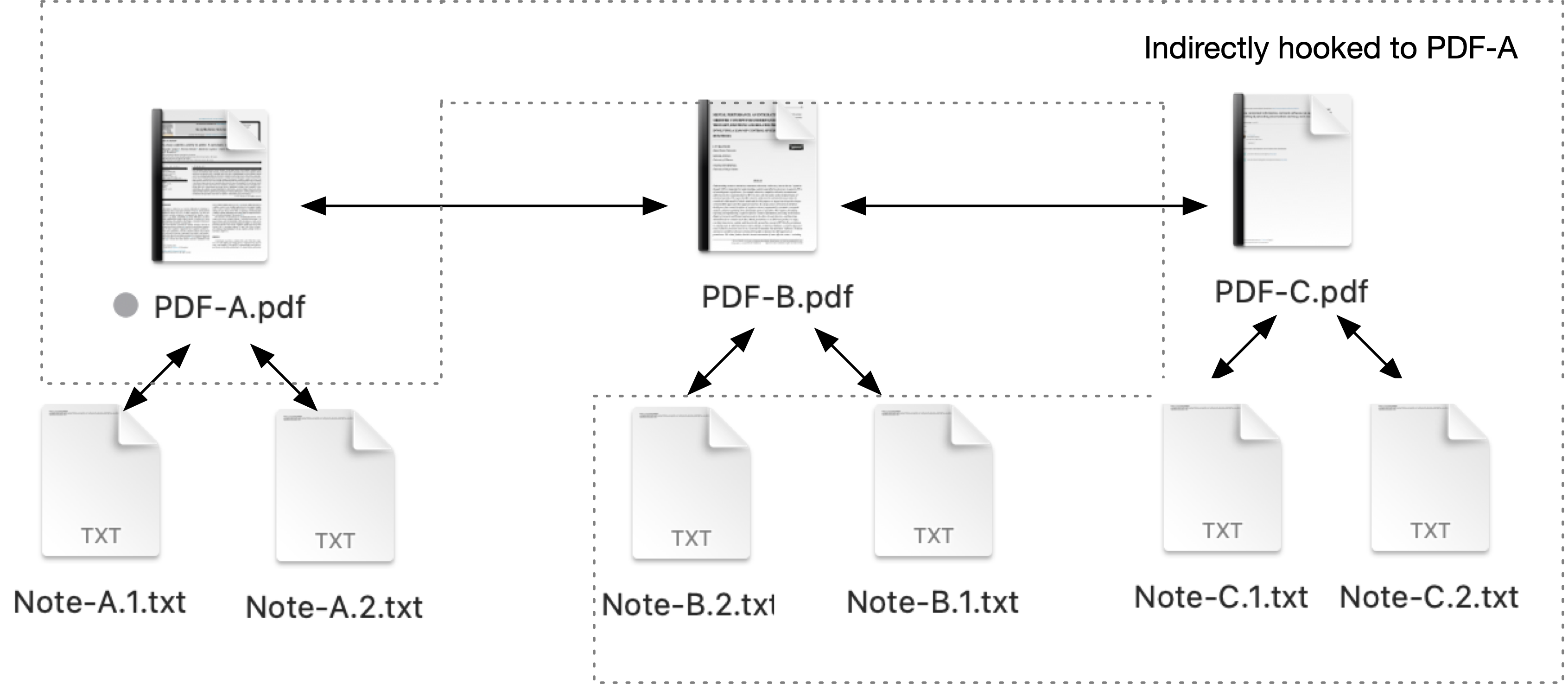
When you use Hookmark to link a Bookends reference to a note, task, or PDF, it creates a bidirectional bookmark. Click the reference, and Hookmark shows all connected items. Click the note, and you can jump back to the source.
This means:
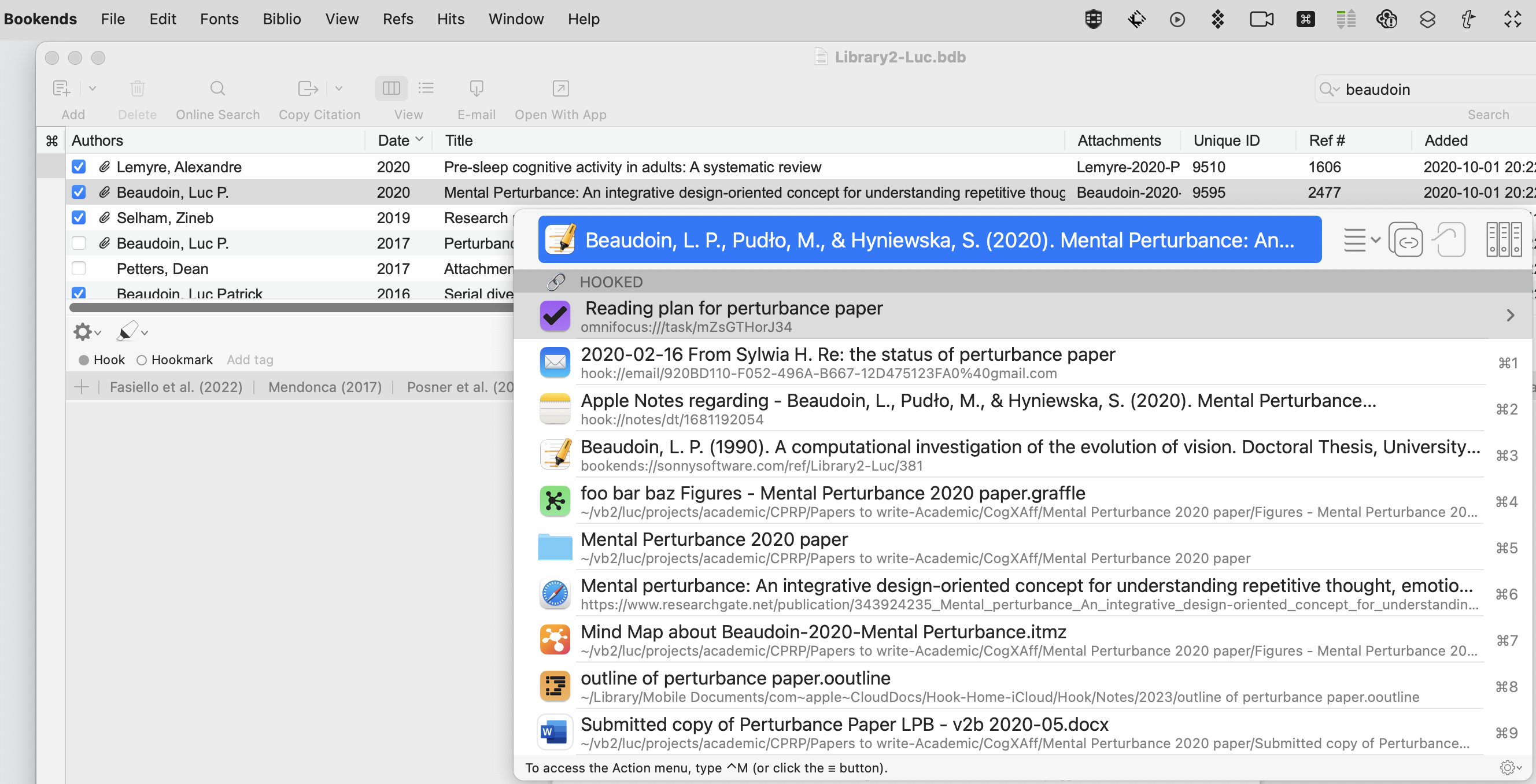
– One click reveals every linked asset across OmniFocus tasks, Apple Notes, and email threads
– No more guessing where a citation was used
– Instant context switching between research and writing
Bidirectional linking turns isolated data into a living network, which is exactly what modern knowledge work demands.
Universal Interoperability Across the Apple Ecosystem

Bookends Links Work Only in Context
A bookends:// link opens Bookends, but only if you’re already in an app that respects URL schemes. It doesn’t help if you’re trying to connect a reference to a folder, a mind map, or a draft in Microsoft Word.
Even within Bookends, native links don’t surface connections across apps. You’re left manually remembering where each citation was used.
Hookmark Connects Everything
Hookmark treats every Bookends reference as a first-class citizen in the Apple ecosystem. With a single command, you can link that reference to:
– A specific page in a PDF via Skim or Preview
– A task in OmniFocus
– A section in an OmniOutliner document
– A folder in Finder
– A note in Apple Notes, DEVONthink, or Obsidian
– An email thread in Mail
Because Hookmark syncs these connections across devices, your entire web of links travels with you, whether you’re on Mac, iPad, or iPhone.
Pro Tip: Use Cmd+Shift+H to invoke Hookmark on any selected item. It works anywhere, from browser to Word to Notes to Safari.
Stable, Synced Links That Don’t Break
Beware of hook://file/ Path Dependencies
Some users try to link directly to PDF files using hook://file/ URLs. But if your Bookends library syncs across devices and file paths differ, such as iCloud Drive versus a local folder, these links will break.
This is especially problematic for students or researchers using multiple devices.
Use bookends:// for Maximum Stability
Hookmark lets you copy bookends:// links directly from any reference. These links offer several advantages:
– They are independent of file paths
– They work on any device with Bookends installed
– They survive PDF renames or moves within the library
– They sync seamlessly via iCloud
Best Practice: Always use bookends:// links for citations. Reserve hook://file/ only for local, path-stable operations.
Search All Your Connected References
Bookends Can’t See Hookmark Data
Sonny Software confirms that Bookends has no native access to Hookmark’s link index. That means you can’t search for “show me all references linked to OmniFocus” directly in Bookends.
Without Hookmark, you lose visibility into your network of connections.
Hookmark Makes Links Searchable
Hookmark maintains its own synced index of all linked items. To find every reference you’ve ever connected:
- Open Hookmark
- Press
Cmd+F - Type
url:bookends
Instantly, you’ll see every Bookends reference you’ve hooked, along with all its connected assets.
This turns Hookmark into a universal dashboard for your research network, independent of Bookends’ interface.
Visual Indicators: See Linked References at a Glance
No Native Way to Spot Hooked Items
By default, Bookends shows no visual cue that a reference has external links. You must select each item and check Hookmark’s menu bar icon, which becomes tedious for large libraries.
This lack of visibility makes it hard to manage or audit your connections.
Automate Visual Tags with AppleScript
The solution is to use Hookmark’s integration script to auto-tag references when linked.
Enable Automatic Labeling
- Open Hookmark Preferences, then navigate to Scripts, then Bookends
- Edit the script to enable:
–set tagColor to "Red"
– Orset userField to "Hooked" - Save and restart Hookmark
Now, every time you link a reference, it gets a red label or a keyword like “Hooked” added to a user field.
Show Tags in Bookends View
- In Bookends, go to View, then Customize Columns
- Add Label Color or User4 (or your chosen field)
- Sort or filter by this column
The result is a scannable list where linked references stand out instantly.
Expert Note: This requires Hookmark Pro for script editing, but the payoff in workflow clarity is immense.
Deep PDF Linking: Jump to Exact Page and Location
Bookends Supports Deep Links, But Inconsistently
You can create deep links in Bookends by selecting text in a PDF and choosing Copy Link. But this only works inside Bookends and doesn’t integrate with external readers.
If you’re reading in Skim or PDF Expert, you’re out of luck.
Hookmark Standardizes Deep Linking
Hookmark works the same way in any PDF reader:
1. Select text in a PDF in Skim, Preview, or another reader
2. Press Cmd+Shift+H
3. Choose Copy Link
The generated link opens Bookends directly, scrolls to the exact page and coordinate of the selected text, and works across devices.
This creates a consistent habit: wherever you are, Cmd+Shift+H creates a precise, reusable link.
Bonus: These links can be pasted into Word, Notes, or OmniOutliner, and clicking them jumps straight to the source.
Seamless Writing and Drafting Workflows
Embed Links Without Cluttering Your Draft
In Microsoft Word or Google Docs, you can paste bookends:// or hook://file/ links as hyperlinks. But you don’t want editors seeing raw URLs.
Use Hidden Text for Clean Formatting
- Paste the link in Word
- Select it, then go to Format, then Font, then Hidden
- Toggle visibility with
Cmd+8(Show/Hide)
Now the link is invisible in print but clickable during your writing process.
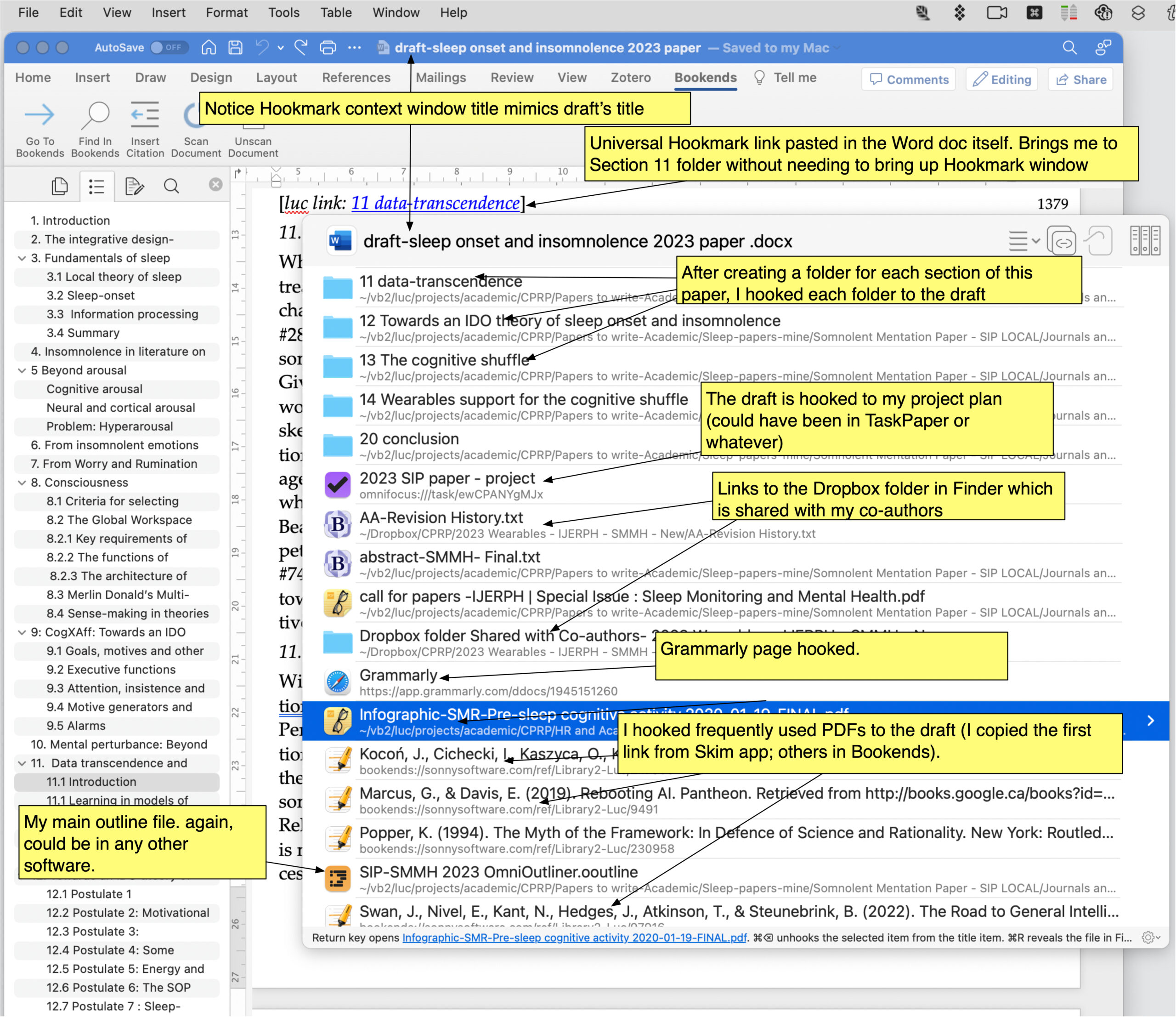
Turn Your Draft Into a Project Hub
With Hookmark, your manuscript becomes a navigation center:
– Link to the Grammarly page for editing
– Hook to the Dropbox folder with figure files
– Connect to the OmniFocus project for deadlines
– Embed links to key references and annotated PDFs
One document. Endless connections.
Why Bookends Plus Hookmark Beats Competitors
| Feature | Bookends + Hookmark | Zotero | Papers (Readcube) |
|---|---|---|---|
| AppleScript Support | Full automation | Limited | Dropped in 2020 |
| Data Sovereignty | iCloud or local | Cloud-dependent | Subscription lock |
| Deep Linking | Native + Hookmark | Basic | Path-based only |
| Cross-App Integration | Full Apple ecosystem | Limited | Walled garden |
| Automation Potential | Scriptable tags, alerts | Manual only | None |
The Link-Friendly Philosophy
Bookends’ developer prioritizes open integration, unlike competitors that lock data in proprietary clouds. This philosophy aligns perfectly with Hookmark’s mission of avoiding walled gardens.
Zotero and Papers may be cross-platform, but they lack the deep OS integration that macOS users need for automated, frictionless workflows.
Set Up Hookmark for Maximum Impact
Prerequisites
Before configuring, ensure you have:
– Hookmark 7.02 or later (fixes Sparkle framework issues)
– Bookends with a modern version that includes AppleScript dictionary
– iCloud Sync enabled for both apps
Step-by-Step Configuration
- Update Hookmark to v7.02 or later
- Open Hookmark Preferences, then Scripts, then Bookends
- Enable auto-tagging in the script:
–set autoTag to true
–set tagColor to "Orange" - In Bookends, add Label Color or User4 to your main view
- Test by hooking a reference and checking if it’s tagged
Now every linked item is automatically visible in your library.
Troubleshoot Common Issues
PDF Missing After “Reveal in Finder”
If Bookends shows a “file not found” dialog, resolve the path first. Return to Hookmark only after the PDF is located, or the link creation may fail.
url:bookends Returns Nothing
Ensure you used Hookmark’s Copy Link command, not Bookends’ native copy. Hookmark only indexes links it processes.
Links Break Across Devices
Switch from hook://file/ to bookends:// URLs. These are path-agnostic and device-safe.
Real-World Use Cases
Academic Researcher With 250+ References
A researcher hooks each citation to Apple Notes with summaries, links the draft to an OmniFocus project and Grammarly, and clicks any reference to see all related notes, tasks, and emails. The result is no more context switching or lost threads.
Student With a Multi-Device Workflow
A student collects references on Mac, reads on iPad using bookends:// links in Notes, and writes on iPhone with instant access to sources. The result is seamless continuity across devices.
Deep Reader Needing Precision Navigation
A scholar creates deep links to page 42 and page 108 of different PDFs and stores them in a central “Argument Map” note. Clicking jumps directly to exact text, skipping scrolling, searching, and wasted time.
Frequently Asked Questions About Hookmark and Bookends
What Makes Hookmark Better Than Bookends’ Native Links?
Hookmark creates bidirectional connections across your entire Apple ecosystem, while Bookends’ native links only work in one direction and stay within the library. Hookmark also syncs across devices and makes links searchable.
Can I Use Hookmark Links on iPad and iPhone?
Yes. Hookmark syncs bookmarks across all Apple devices where it’s installed. Using bookends:// URLs ensures stable, cross-device functionality that doesn’t break when file paths change.
Do I Need Hookmark Pro for Bookends Integration?
Basic Hookmark works with Bookends, but Pro is required for editing integration scripts, such as enabling auto-tagging with color labels or user fields. The Pro features unlock the visual indicators discussed above.
Why Do My hook://file/ Links Break on Other Devices?
These links point to specific file paths. If your Bookends library syncs via iCloud and paths differ between devices, the links fail. Switch to bookends:// URLs for path-independent stability.
How Do I See Which Bookends References Have Hookmark Links?
Bookends doesn’t show this natively. Use Hookmark’s AppleScript integration to auto-tag linked references with a color label or user field, then add that column to your Bookends view.
Is Bookends With Hookmark Better Than Zotero or Papers?
For Apple users, yes. Bookends offers superior AppleScript support, data sovereignty, and deep OS integration. Combined with Hookmark, it provides automation and cross-app connectivity that competitors lack.
Key Takeaways for Choosing Hookmark Over Bookends Links
Bookends is a powerhouse reference manager, but it’s designed to store knowledge. Hookmark is designed to connect it. By using Hookmark over native Bookends links, you gain bidirectional navigation across apps, universal interoperability on Apple devices, and stable synced links that don’t break.
You also unlock visual tagging via AppleScript automation, deep PDF linking from any reader, and a searchable connection index across your workflow. For researchers, writers, and students who demand more than a citation dump, Hookmark transforms Bookends into a living, breathing knowledge engine.
Start by updating Hookmark to version 7.02 or later, enabling auto-tagging in the integration script, and adding the relevant column to your Bookends view. From there, explore deep linking and cross-app connections to build the workflow that fits your research style.