Imagine needing urgent access to your office computer while working from home, with all your files and applications available without making a trip back downtown. AnyDesk makes this possible with fast, secure remote desktop connections across any device. This guide walks you through exactly how to set up AnyDesk on any platform, configure unattended access, transfer files securely, and manage remote devices like a professional. Whether you are a remote worker, IT support technician, or helping family with tech issues, you will learn every step to get connected quickly and safely.
We will cover installation on Windows, macOS, Linux, and mobile devices, security configuration settings, connection workflows, and best practices using verified data from official sources. No fluff, no guesswork, just clear, actionable steps to set up AnyDesk effectively.
Download AnyDesk from the Official Website
Before you can set up AnyDesk, you must obtain the correct installation file from a trusted source. Using unofficial websites risks malware infection and compromised security.
Where to Get the Installer
Navigate to the official AnyDesk website at https://www.anydesk.com using your web browser. Click the prominent “Download Now” button displayed on the homepage. Select your specific operating system from the available options, which include Windows, macOS, Linux, Android, and iOS. Save the installer file to your device’s downloads folder for easy access.
Always verify you are downloading from the official domain. Third-party sites may distribute versions containing malware or unauthorized modifications that could compromise your system security.
Install AnyDesk on Windows
The Windows installation process takes only a few minutes and provides the most full-featured experience. Follow these steps to set up AnyDesk properly on your Windows machine.
Windows Installation Steps
Locate the downloaded anydesk.exe file in your Downloads folder and double-click to run it. When the User Account Control prompt appears, click “Yes” to allow the application to make changes to your system. You will be presented with two installation options: “Install AnyDesk on this device” or “Run without installation.” Choose the first option for permanent use and unattended access capabilities.
Accept the End User License Agreement after reviewing the terms. You may optionally change the installation path if you prefer a different directory. Click “Install” to begin the installation process. Once completed, AnyDesk launches automatically and displays a system tray icon confirming it is running properly.
Choose “Install” rather than portable mode if you need unattended access. Portable mode closes when you exit the application and will not run at startup, preventing remote connections when you are not actively using the program.
Set Up AnyDesk on macOS
macOS users can install AnyDesk through a straightforward drag-and-drop process. The application supports both Intel and Apple Silicon Macs running macOS 10.10 Yosemite or later.
macOS Installation Process
Open the downloaded .dmg file from your Downloads folder. Drag the AnyDesk icon to your Applications folder to complete the installation. Launch AnyDesk from your Applications folder or through Launchpad.
On first launch, macOS may block the application due to security restrictions. If prompted, go to System Settings, then Privacy and Security, and click “Allow” next to the AnyDesk blocking message. Once approved, AnyDesk starts automatically and displays your unique 9-digit AnyDesk ID in the main window.
The macOS version provides full remote control capabilities, though some advanced features may require additional permissions depending on your macOS version and security settings.
Configure AnyDesk on Linux
Linux users can install AnyDesk using package managers for their specific distribution. The application supports Debian, Ubuntu, Fedora, openSUSE, and other major distributions.
Debian and Ubuntu Installation
Open a terminal window and navigate to your Downloads directory. Run the command sudo dpkg -i anydesk_*.deb to install the package. If any dependency errors appear, run sudo apt-get install -f to resolve them automatically. Start AnyDesk by typing anydesk in the terminal or locating it in your desktop menu.
Fedora and RHEL Installation
For Fedora-based systems, use the command sudo rpm -ivh anydesk-*.rpm to install the package. Start the application through your desktop environment’s application menu or by typing anydesk in a terminal.
After installation, Linux users can access the same features as Windows and macOS, including file transfer, remote control, and unattended access configuration.
Set Up AnyDesk on Mobile Devices
AnyDesk offers mobile applications for both Android and iOS devices, though functionality differs from desktop versions due to platform restrictions.
Android Setup
Open the Google Play Store on your Android device and search for “AnyDesk.” Tap “Install” to download and install the application. Launch AnyDesk from your app drawer and grant the necessary permissions when prompted. The app displays your device’s AnyDesk ID and allows you to connect to other devices.
Android devices can both control and be controlled remotely, making them versatile for IT support scenarios or accessing your home computer while traveling.
iOS Setup
Download AnyDesk from the App Store and install it on your iPhone or iPad. Launch the application and log in with your My AnyDesk account or use the device’s unique ID. Note that iOS allows viewing remote desktops but cannot fully control other iOS devices due to Apple’s security restrictions.
Mobile users can connect to Windows, Mac, or Linux computers to access files, applications, and network resources while on the go.
Configure Security and Unattended Access

Proper security configuration is essential for safe remote access. This section explains how to set up unattended access and protect your connections.
Access Settings Configuration
Click the menu icon in AnyDesk and navigate to Settings, then Security. You may need to confirm the User Account Control prompt to access these settings. Enable “Always show incoming session requests” to receive visual notifications of connection attempts. Enable “Enable unattended access” to allow remote login without manual approval each time.
Create a strong unattended password using at least 8 characters with a mix of uppercase, lowercase, numbers, and symbols. This password will be required whenever someone attempts to connect to your device when you are not present.
Additional Security Options
Consider enabling “Lock session on disconnect” to automatically lock your remote PC when a session ends. For added protection, you can configure “Allow connections only from specific AnyDesk IDs” to restrict access to pre-approved devices. Store your unattended password in a secure password manager rather than writing it down.
Two-factor authentication is available for Professional and Enterprise plan users, adding an extra layer of security to your My AnyDesk account login.
Connect to a Remote Computer
Once both devices are configured, establishing a remote connection follows a simple workflow. This section covers connecting from your local machine to a remote target.
Connection Process
Open AnyDesk on your local device. In the “Remote Desk” field, enter the AnyDesk ID or alias of the target machine. Press Enter or click “Connect” to initiate the connection request.
If the remote machine has unattended access enabled, enter the pre-configured unattended password when prompted. The connection establishes automatically upon correct authentication. If unattended access is not enabled, the remote user receives a pop-up request and must manually click “Accept” to proceed.
After successful connection, the remote desktop appears within your AnyDesk window. Mouse and keyboard inputs transmit in real time, allowing you to work as if you were sitting at the remote computer.
Post-Connection Controls
Use your mouse and keyboard normally to control the remote machine. Right-click, scroll wheel, and multi-button mice function fully. Keyboard shortcuts like Ctrl+C and Ctrl+V work across both systems. Access Ctrl+Alt+Del functions through the system tray icon to lock the machine, open Task Manager, or sign out before disconnecting.
Transfer Files Between Devices
AnyDesk includes a built-in dual-pane file manager for seamless data exchange between connected devices. This feature eliminates the need for external file transfer services.
File Transfer Steps
During an active session, click the File Manager icon (folder) in the toolbar. A dual-pane window opens with your local machine files on the left and remote machine files on the right. Drag and drop files between panels to transfer them, or use the Upload and Download buttons for more control.
You can create folders, rename files, delete items, or overwrite existing files directly through the interface. All file transfers use end-to-end encryption, protecting your data during transit.
Transfer speed depends on your internet bandwidth, with optimal conditions supporting speeds up to 100 MB per second. A progress bar displays completion status for each transfer.
Use My AnyDesk Portal for Team Management
The My AnyDesk web portal provides centralized management for teams, businesses, and IT administrators managing multiple devices. Access the portal at https://my.anydesk.com after creating an account.
Portal Features
Log in with your AnyDesk account to access user and role management tools. Add team members and assign roles such as Admin, Standard User, or Viewer. Set visibility permissions to control which devices each user can access.
View all connected and registered devices organized into groups like “Sales Team” or “Accounting.” Generate custom clients with embedded branding or specific configurations for your organization. Monitor connection history, session duration, and export reports in CSV or PDF format for compliance auditing.
The portal requires a paid license for full functionality, though basic features remain available with free accounts.
Troubleshoot Common AnyDesk Issues
Even with proper setup, you may encounter occasional issues. Understanding common problems and their solutions helps maintain reliable remote access.
Connection Problems
If you cannot connect despite entering the correct ID, verify the remote machine is online and AnyDesk is running as a service. Ensure your firewall allows AnyDesk through ports 7070 (UDP) and 443 (TCP). Restart AnyDesk on both devices and attempt the connection again.
A black screen during session often indicates a graphics driver conflict. Update your GPU drivers on the remote machine to resolve this issue. Slow performance typically results from high latency or low bandwidth; lower your display quality settings or switch to a wired internet connection.
Authentication Issues
If your password is rejected, carefully re-enter it checking for typos and caps lock status. If you have forgotten your unattended password, you must reset it through the Security settings on the remote machine. Ensure you have administrator privileges to modify these settings.
Printer not detected during remote sessions indicates the AnyDesk Printer module is not installed. Reinstall AnyDesk with all components or enable the printer module through Settings.
Frequently Asked Questions About AnyDesk Setup
How do I find my AnyDesk ID?
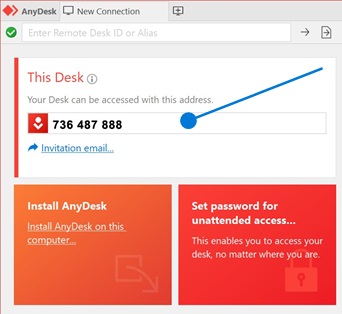
Your AnyDesk ID appears in the main window of the application under the “This Desk” section. It is a unique 9-digit alphanumeric identifier assigned to each device. You can also right-click this ID to assign a custom alias for easier identification.
Can I use AnyDesk without installing it?
Yes, AnyDesk offers a portable mode called “Run without installation” on Windows. This allows temporary use without permanent installation, though you lose unattended access capabilities. For Linux, you can use the Quick Support version for one-time support sessions without installation.
Is AnyDesk free for personal use?
AnyDesk offers a free tier with basic features including file transfer and manual approval connections. However, persistent unattended access requires a paid license. Free version allows one session at a time and displays occasional prompts.
Why is my AnyDesk connection slow?
Slow connections typically result from high latency, low bandwidth, or network congestion. Try lowering display quality in the Options menu, use a wired ethernet connection instead of WiFi, or close bandwidth-intensive applications on either device.
Can I access my computer from my phone?
Yes, install the AnyDesk app on your Android or iOS device. Enter your computer’s AnyDesk ID to connect and control your desktop remotely. Mobile devices can view and control Windows, Mac, and Linux computers, though controlling other mobile devices is limited.
How do I set up unattended access?
Navigate to Settings, then Security, and enable “Enable unattended access.” Create a strong password when prompted. This allows remote connections without manual approval, though you must enter the password on the connecting side.
Key Takeaways for Setting Up AnyDesk
Successfully setting up AnyDesk requires installing the application on both local and remote devices, choosing the full installation option rather than portable mode for unattended access. Configure security settings including a strong unattended password and enable additional protections like two-factor authentication if available through your plan.
Remember to use the My AnyDesk portal for team management if you support multiple devices or work in an organization. Test your setup between two machines before deploying across production environments. Keep Both devices updated and regularly review connection logs for unauthorized access attempts.
With AnyDesk properly configured, you can access your work computer from home, provide IT support to family members, or manage servers without physical presence. The setup process takes approximately 15 minutes per device, and the intuitive interface makes remote control accessible to users of all technical levels.