Is your Vivo sit-to-stand desk unresponsive, showing incorrect height readings, or failing to save your presets? A reset can fix these common performance issues. Whether your desk is moving erratically or the control panel isn’t responding, resetting the Vivo desk frame restores factory settings and reinitializes the motor system. This quick process takes under two minutes and requires no tools or technical skills. Follow this guide to reset your Vivo desk correctly and get it working like new.
Lower Desk to Bottom Position Before Reset
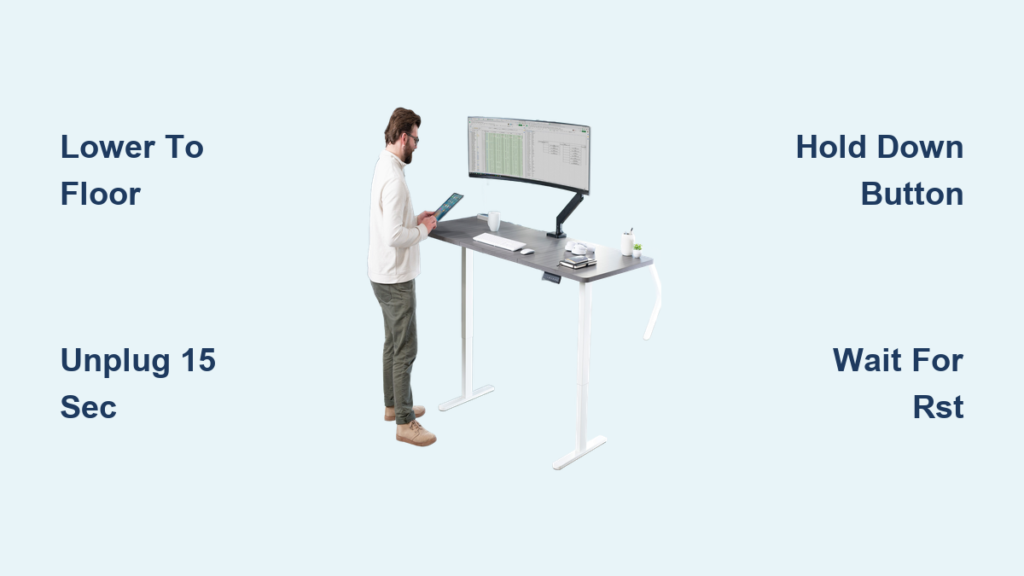
Before starting the reset, move the desk to its lowest height. This ensures the system calibrates from a stable baseline. The reset process relies on the desk detecting a full range of motion. If the desk begins too high, the motors may not recalibrate properly, leading to inaccurate positioning or error messages.
Why Start at the Lowest Height
Starting at the lowest position is critical for successful calibration. When the desk begins at the floor level, the control system can establish proper motor limits. This prevents the desk from stopping prematurely or behaving unpredictably after the reset.
Use these steps to lower the desk:
• Use the touch panel and hold the Down arrow until the desk touches the floor
• Listen for motor stoppage. A slight hum that cuts off indicates the base position is reached
• Clear space beneath the desk to prevent resistance from obstacles
Pro Tip: Always reset with the desk empty or lightly loaded. Heavy weight can interfere with motor calibration.
Power Off and Unplug the Desk
Once the desk is fully lowered, disconnect it from the power source. This step clears residual power from the control box and prepares the system for a clean restart.
Follow These Power Disconnection Steps
Unplugging properly is essential for a complete reset. Skipping this step or rushing through it may result in an incomplete reset that doesn’t fix the problem.
- Unplug the power cord from the wall outlet
- Wait exactly 15 seconds to clear residual power from the microcontroller
- Check that the touch panel display is completely dark
Warning: Never attempt a reset while the desk is plugged in. This can damage the control system and void your warranty.
Restore Power to the Desk
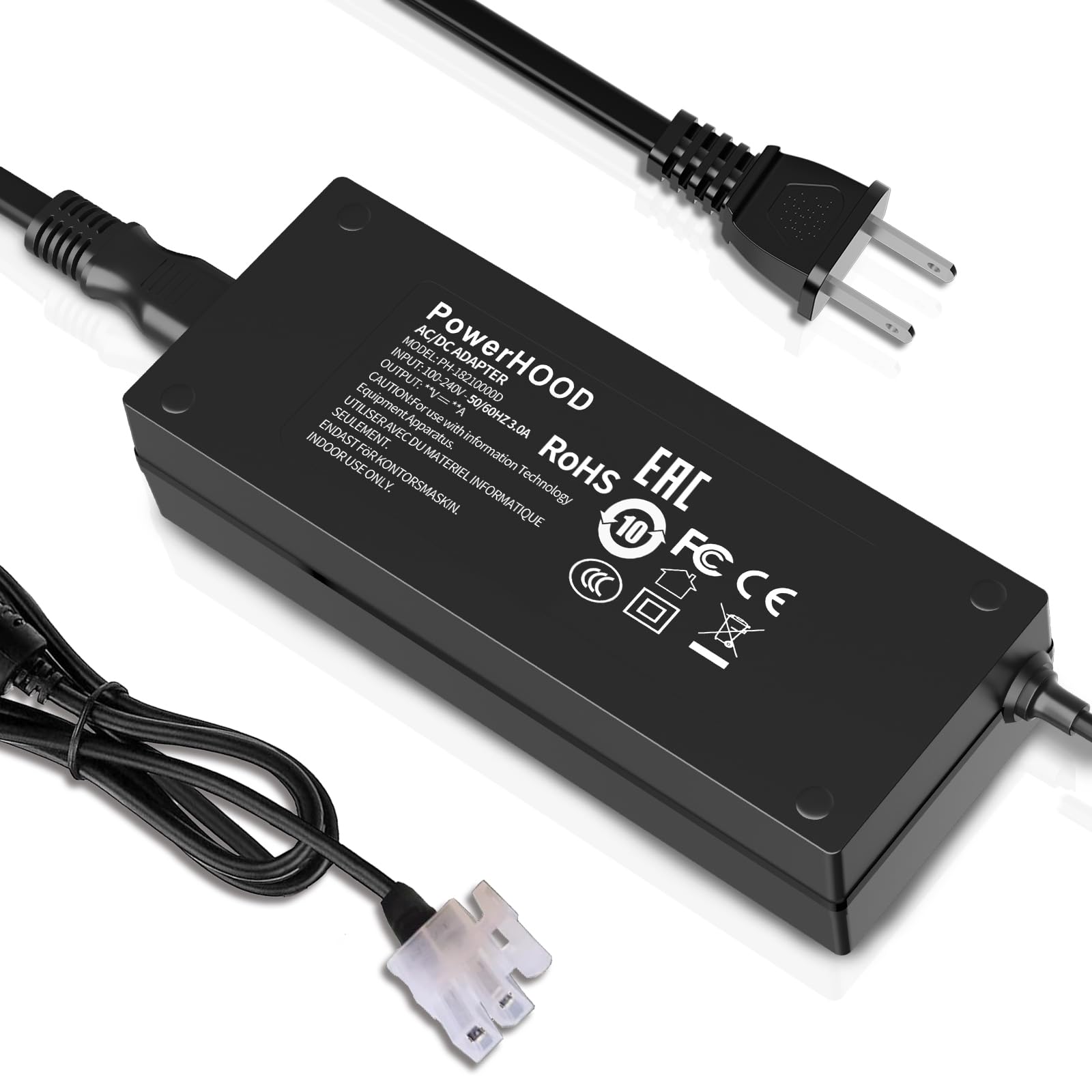
After the 15-second pause, reconnect the desk to power. The system will reinitialize and prepare for the reset sequence.
What to Expect When Power Returns
When you plug the desk back in, the system goes through a brief startup process. Understanding what happens normalizes expectations and helps identify problems if they occur.
The touch panel will light up, indicating the system has power. Some models show a brief flash or countdown. The desk remains stationary during this time, which is completely normal. Ensure the power outlet is functional by testing it with another device if the panel doesn’t turn on.
Quick Check: Verify the power adapter and desk cord are securely connected at both ends before proceeding.
Trigger Reset Mode on Control Panel

Now, press and hold the down-arrow button on the touch panel to initiate the reset sequence. This tells the desk to erase stored settings and recalibrate the motor limits.
Step-by-Step Reset Activation
The reset mode is hidden and requires a specific button sequence to access. Following these steps precisely ensures the system enters reset mode successfully.
- Press the down arrow button repeatedly. Do not hold it continuously
- Watch the display carefully. After a few seconds, it will show RST
- Keep pressing the down arrow until numeric values appear, such as height measurements in cm or inches
When numeric values reappear on the screen, the reset is complete. The desk frame has now been fully reset and is ready for use.
Question: Why Does RST Appear? This is the reset confirmation code. It means the system is ready to reinitialize and erase previous settings.
Confirm Reset Completion
Once numbers reappear on the screen, the reset process is finished. Your Vivo desk is now reset and fully functional.
Final Verification Steps
Testing the desk after reset confirms everything works properly. This step also reveals any remaining issues that may need additional troubleshooting.
Test the up and down buttons. The desk should move smoothly without jerking or stuttering. Reprogram any presets you had saved, as these are erased during reset. Verify the auto-stop function works by releasing the button and confirming the desk stops immediately.
Success Signal: If the desk moves smoothly without freezing or unusual sounds, the reset worked properly.
Troubleshooting Common Reset Issues

Even after following the steps correctly, some users face problems. Here is how to fix the most common issues.
Display Shows ERR After Reset
This error indicates motor overload or misalignment. Unplug the desk again, wait 15 seconds, and repeat the reset steps. Ensure both legs are on level ground and the floor is even.
RST Does Not Appear on Display
This happens when the button is pressed too fast or the power cycle was incomplete. Unplug, wait 20 seconds, plug back in, and press the down arrow once per second rather than rapidly. This slower pace gives the system time to recognize the input.
Desk Moves Unevenly After Reset
When one leg moves faster than the other, the legs are out of sync. Perform a re-synchronization by lowering the desk fully, holding the Down button for 5 seconds after it stops, then raising fully and holding Up for 5 seconds.
Prevent Future Desk Issues
A reset fixes immediate problems, but regular care keeps your Vivo desk running smoothly for years. Simple maintenance habits prevent most common issues from recurring.
Maintenance Tips for Optimal Performance
These practices extend the life of your desk and reduce the frequency of resets needed:
• Stay within the weight limit, typically 80 to 120 kg
• Clean the control panel with a dry microfiber cloth. Avoid using liquids
• Power down weekly by unplugging for 30 seconds to prevent memory glitches
• Check for firmware updates on the VIVO website for your specific model
Pro Tip: Reset your desk every 3 to 6 months if used daily to maintain optimal performance.
When to Contact VIVO Support
If the desk still does not respond after a proper reset, professional help may be needed. Certain symptoms indicate hardware failures that cannot be fixed with a reset.
Contact VIVO customer support if you experience these issues:
• No display after plugging in, which indicates possible power supply failure
• One leg does not move, suggesting a motor or wiring issue
• Persistent error codes that remain after multiple reset attempts
Have your model number and purchase date ready when contacting support. Most issues are covered under the 5-year frame warranty.
Key Takeaways for Resetting Your Vivo Desk
Resetting your Vivo desk is the fastest way to resolve movement issues, incorrect height readings, or unresponsive controls. By lowering the desk to its lowest position, power cycling by unplugging for 15 seconds, and triggering the RST mode on the control panel, you restore factory settings in under two minutes. Always test the desk after reset to confirm smooth operation, and reprogram your preferred height presets. Perform this reset whenever the desk acts up, and enjoy seamless height adjustments again.
Frequently Asked Questions About Resetting Vivo Desks
How do I know if my Vivo desk needs a reset?
If your desk moves erratically, stops mid-height, shows incorrect readings, fails to save presets, or the control panel becomes unresponsive, a reset can likely fix these issues.
Will resetting my Vivo desk erase my saved height presets?
Yes, the reset process erases all stored settings including your custom height presets. You will need to reprogram them after completing the reset.
How long does a Vivo desk reset take?
The entire reset process takes under two minutes. The longest part is waiting the 15 seconds while the desk is unplugged.
Can I reset my Vivo desk while it is plugged in?
No, you must unplug the desk before resetting. Attempting a reset while plugged in can damage the control system and may void your warranty.
Why does my desk show RST but nothing happens?
If RST appears but the reset does not continue, keep pressing the down arrow button until numeric values appear. The display needs to show actual numbers before the reset is complete.
How often should I reset my Vivo desk?
For desks used daily, resetting every 3 to 6 months helps maintain optimal performance. You can also reset whenever problems occur.