You’re ready to stand, but your desk refuses to rise. No matter how many times you press the up arrow, nothing happens. This is one of the most common electric desk issues, and in over 70% of cases, it’s fixable without replacing any parts. Whether your desk only moves down, shows an error code like E01 or E3, or seems completely unresponsive, this guide delivers the exact steps to diagnose and resolve the problem fast.
Most often, the issue isn’t a broken motor or dead control box. It’s something simple: a power glitch, misaligned legs, obstructed path, or corrupted memory. A quick reset or cable reseat can restore full function in under two minutes. This article walks you through every possible cause, shows you identify which one applies to your desk, and gives you proven fixes used by thousands of users across brands like UPLIFT, Flexispot, Vari, and more.
Clear the Path First
Before diving into resets or cables, rule out the most common cause: obstruction. Electric standing desks have built-in anti-collision sensors that stop upward movement the moment resistance is detected. These sensors cannot tell the difference between a wall and a chair arm. They just react.
Common Obstructions
Even slight contact from these items can trigger the sensor and halt upward motion:
- A rolling chair’s backrest or arms
- A nearby filing cabinet or storage pedestal
- Overhead shelves or lighting fixtures
- Tight cables pulling down from the desktop
What to Do
- Roll your chair fully backward away from the desk
- Remove all objects near the desk, especially above and below
- Check for tight cables that may be pulling downward
- Test with an empty desktop
- Ensure no carpet pile or footrest is pressing against the legs
If the desk moves after clearing space, the sensor was triggered. Use cable management trays or clips to keep wires slack and avoid future issues.
Power Cycle and Reset the Desk
Most “won’t go up” problems stem from lost positional memory after a power interruption. When unplugged or hit by a surge, the control box forgets the desk’s true height. On reboot, many models default to reset mode, allowing only downward movement to recalibrate.
Why Desks Only Go Down After Power Loss
You might see these symptoms:
- Desk at full height but display shows 66 cm
- Only the down button works
- No upward response despite repeated presses
This is normal behavior, and it’s fixable.
Standard Reset Steps
- Unplug the desk from the wall
- Wait 30 seconds for memory wipe
- Plug back in
- Press and hold the DOWN button for 10 to 15 seconds
– On UPLIFT: Watch for “ASr” or “RESET” on display - Keep holding until the desk dips down slightly, then rises
- Release and test full range
This clears memory errors, resets height limits, and re-synchronizes motors. UPLIFT reports that 70% of returned control boxes were actually functional and fixed with correct reset.
Try the Dual-Button Reset
If the standard reset fails, use the up and down button method. This user-discovered fix has been verified across dozens of brands including Farexon, Uncaged Ergonomics, Bunoem, Monoprice, and generic frames.
How to Perform the Reset
- Unplug for 1 to 5 minutes
- Plug back in
- Press and hold UP and DOWN buttons together for 15 to 30 seconds
- Release, then immediately hold DOWN until the desk twitches or moves
- Let it complete a full downward cycle
What to Watch For
- Audible click from control box
- Display changes from E01 or E13 to flashing AS7 or ASR
- Slight motor movement after release
- Full function restored after reset
This method forces the system into recalibration mode, even when standard resets fail.
Decode Error Codes

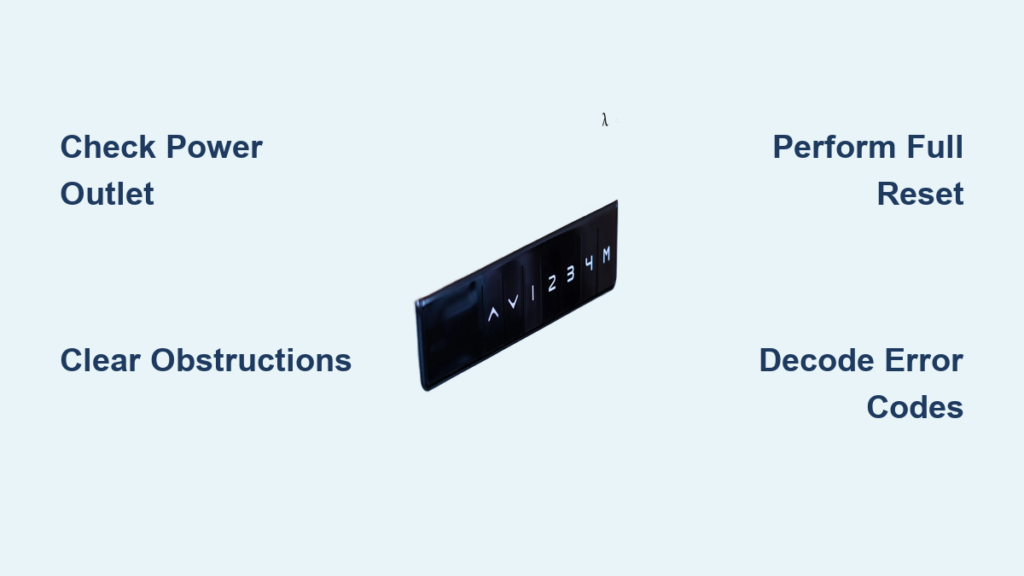
Your keypad’s display is a diagnostic tool. Here’s what common codes mean and how to fix them.
E01, E13, or E1.3: Position Sensor Error
Cause: Calibration lost or memory corruption
Fix: Perform dual-button reset (hold UP and DOWN together), then hold DOWN until movement begins. If display changes to ASR or AS7, the reset is working.
E3, E-3, or E3 RES: Motor Communication Failure
Cause: Disconnected, damaged, or faulty motor cable
Fix:
1. Unplug the desk
2. Open the control box access panel
3. Reseat both motor cables (XLR-style connectors)
4. Swap cables at control box to test which motor is faulty
5. Look for bent pins, frayed wires, or corrosion
Error E-3 means the controller cannot sense the motor. It could be the cable, the motor, or the port itself.
E5: Short Circuit or Controller Fault
Cause: Power surge, internal short, or damaged PCB
Fix: Reset the desk, check for burnt smell or melted insulation, test the outlet with another device, and contact the manufacturer if persistent.
E33 or E66: Dual Leg Detection Failure
Cause: Cascading E3 error where both motors are not communicating
Fix: Reseat all cables, reset using dual-button method, and inspect for physical damage.
ASR, AS7, or -C-: Reset Mode Active
These are not errors. They are good signs:
- ASR or AS7 means reset is in progress
- -C- means calibration cleared
- Flashing height indicates reprogramming mode
Continue holding the DOWN button until the desk completes its cycle.
Fix Uneven or Stuck Legs
If one side lifts and the other does not, your desk is out of sync. This happens when motors become desynchronized, one leg is bound or jammed, or frame bolts are loose.
Quick Sync Fix
- Lower desk fully using the reset procedure
- Visually inspect both legs. Are they touching the floor?
- Use a bubble level on the desktop
- Tighten all frame bolts and leveling feet
- Perform reset to re-synchronize
Dual-motor desks rely on sync. Resetting realigns both sides.
Check Weight Load and Balance
Exceeding your desk’s weight limit (typically 150 to 350 lbs) or placing heavy items off-center can prevent upward movement.
Common Overloads
- Multiple large monitors
- Desktop PC tower
- Printer, speakers, stacked books
How to Test
- Remove all non-essential items
- Distribute remaining weight evenly across the desktop
- Use an under-desk CPU holder to balance the load
- Retest upward movement
If the desk rises after removing weight, you were over capacity or imbalanced.
Wait for Duty Cycle Reset
Your desk has a built-in cool-down timer. After about 2 minutes of continuous use, the control box activates thermal protection and shuts down for 18 minutes.
Symptoms
- Desk stops responding after repeated adjustments
- No error code displays
- Works again after 15 to 20 minutes
This is normal behavior, not a defect. Wait 15 to 20 minutes and avoid rapid up/down cycling.
Inspect Cables and Connections
Loose or damaged cables cause intermittent or one-sided failure. The most common failure point is the keypad to control box connection.
Critical Points to Check
- Keypad to control box connection
- Motor to control box (XLR connectors)
- Power cord connection
- Internal wiring harnesses
How to Inspect
- Unplug the desk
- Locate the control box (usually under desktop or between legs)
- Open the access panel
- Reseat every connector until it clicks
- Look for frayed wires, bent pins, corrosion, or loose zip ties
Pro move: Swap motor cables at the control box. If the dead side now works, the original motor or cable is faulty.
Reprogram Height Limits
You may have accidentally set an upper container stop that prevents the desk from rising past a certain height.
How to Clear
- Lower desk slightly below desired maximum
- Hold the memory button (M) until display flashes
- Press UP to set new maximum
- Save to M1 or M2 if using presets
To clear lower stop: Hold DOWN past the lowest point until the desk twitches.
Fix Mechanical Binding (Advanced)
If resets fail and motors hum but do not move, the lead screw may be jammed. The motor turns a lead screw inside each leg, and a nut moves up and down the screw. Dust, impact, or lack of lubrication can cause binding.
Symptoms
- Desk stops at the same height every time
- Grinding or clicking noise
- One leg moves while the other is stuck
Fix
- Lower desk fully
- Remove access panel on stuck leg
- Inspect lead screw for debris or damage
- Manually rotate casing to free it
- Clean and lubricate with silicone-based grease only
- Reassemble and test
Never use oil or WD-40. It attracts dust and degrades over time.
When to Replace Hardware
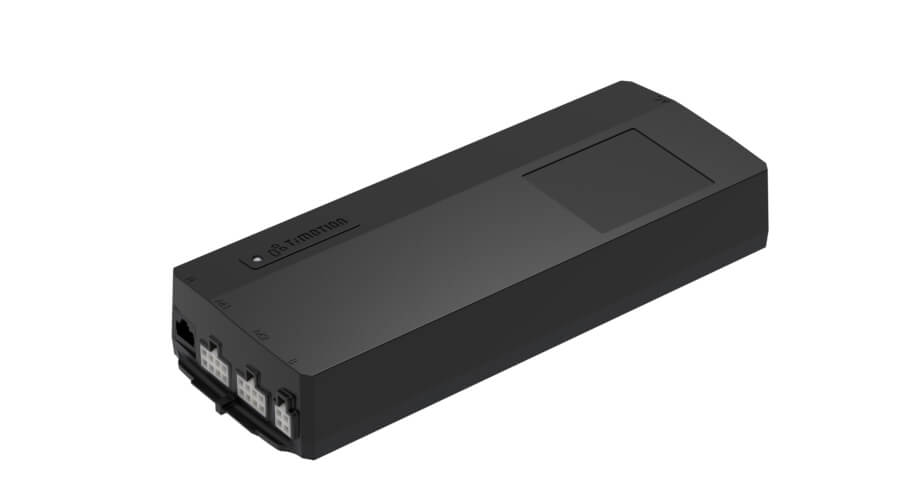
If all else fails, hardware may be dead. Here are the signs:
- No motor hum when pressing buttons
- Burning smell or smoke
- Visible damage to motor or wiring
- One motor completely silent
- Reset fails after 3 to 5 attempts
What to replace:
- Motor unit (~$50 to $100)
- Control box (~$80 to $150)
- Keypad (~$25 to $40)
Many generic desks use TiMotion TC11 series components, widely available on Amazon or AliExpress.
Brand-Specific Fixes

UPLIFT Desk
Hold DOWN for 10 seconds until “ASr” appears. Release, then hold DOWN again until movement. Support: 800-349-3839 or hello@upliftdesk.com.
Farexon (Amazon)
Hold DOWN for about 15 seconds. E01 changes to blinking AS7. Continue until desk lowers. No official support exists.
Uncaged Ergonomics
User fix: Hold DOWN only for 30 seconds. ASR flashes and function restores. Factory method: Unplug 30 seconds, plug in, hold UP and DOWN for 20 to 30 seconds.
Desks with M1/M2 Presets
Hold S and 2 together to clear calibration. Display shows -C-. Then perform standard reset.
Prevent Future Failures
Keep your desk running smoothly with these habits:
- Secure cables with trays every 3 months
- Check leg alignment and bolts every 6 months
- Perform reset every 6 to 12 months
- Lubricate lead screws every 2 years with silicone grease
- Always use a surge protector
- Limit to 3 to 5 full cycles per day
Frequently Asked Questions About Standing Desk Won’t Go Up
Why does my standing desk only go down but not up?
This typically happens after a power interruption. The control box loses positional memory and enters reset mode, allowing only downward movement for recalibration. Perform a standard reset by holding the DOWN button for 10 to 15 seconds.
What does error code E01 mean on my standing desk?
E01 indicates a position sensor error or calibration loss. This commonly occurs after power surges or when the desk has been unplugged. Fix it by performing the dual-button reset (hold UP and DOWN together for 15 to 30 seconds) followed by holding DOWN until movement begins.
How do I fix a standing desk that stopped working suddenly?
Start with these steps in order: clear any obstructions around the desk, unplug for 30 seconds and plug back in, perform a standard reset, then try the dual-button reset. If these fail, check all cable connections and inspect for mechanical binding.
Can a standing desk motor be repaired or does it need replacement?
Motors can sometimes be repaired if the issue is a loose connection or binding. However, if the motor is completely silent, emits a burning smell, or shows visible damage, replacement is necessary. Motor units typically cost $50 to $100.
Why does my desk stop halfway up?
This is usually caused by the anti-collision sensor triggering on slight resistance, the upper container stop being set too low, or one leg binding due to debris or lack of lubrication. Clear surroundings, check height limits, and inspect for mechanical issues.
How long do standing desk motors last?
With proper maintenance, standing desk motors typically last 5 to 10 years. Regular resets, keeping the lead screws lubricated with silicone grease, and avoiding excessive weight load will extend motor life significantly.
Key Takeaways for Fixing Your Standing Desk
Most standing desk issues resolve with simple resets. Start by clearing obstructions, then try the standard DOWN button hold, followed by the dual-button UP and DOWN reset. Check all cable connections if errors persist. Only consider hardware replacement after attempting all troubleshooting steps. Remember that 70% of returned control boxes were actually functional. Maintain your desk with annual inspections, cable management, and occasional resets to prevent future failures.