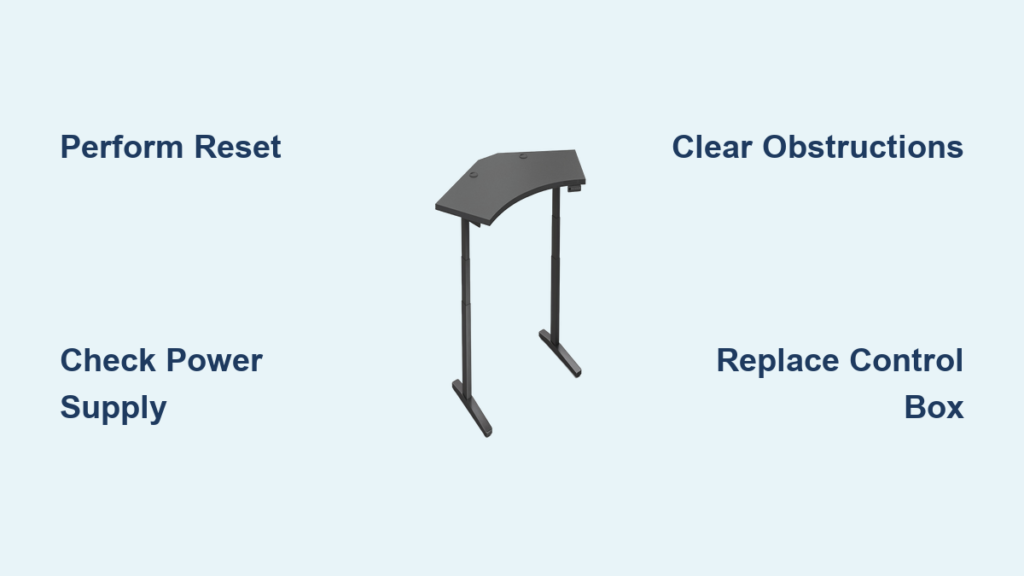
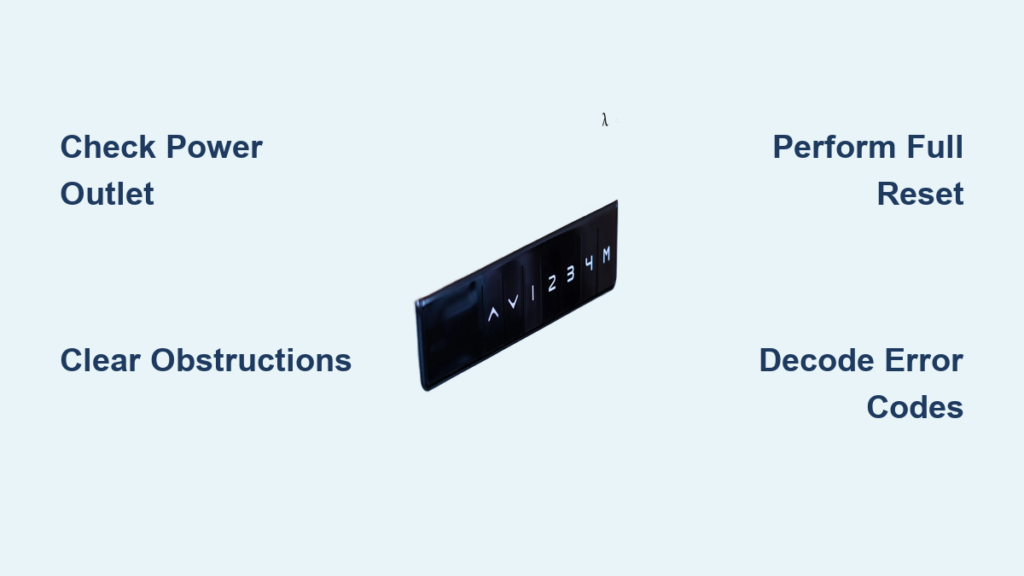
You’re pressing the buttons, but nothing happens. The display is blank, or worse, flashing an error code like E3 or E5. Your standing desk is stuck, and your productivity is on hold. If your standing desk controller not working, you’re not alone. Thousands of users face the same issue, and in 70% of cases, it’s not a hardware failure. This guide walks you through every possible cause, diagnostic step, and solution so you can get your desk moving again, fast.
We’ll cover how to reset your desk, decode error codes, test power and connections, and identify when a part needs replacing. Whether you have an UPLIFT, Desky, or generic brand, this guide applies universally.
Check Power & Outlet First
Before diving into complex fixes, confirm the basics. Power issues are the most common cause of controller failure, and they’re also the easiest to rule out.
Test the Wall Outlet
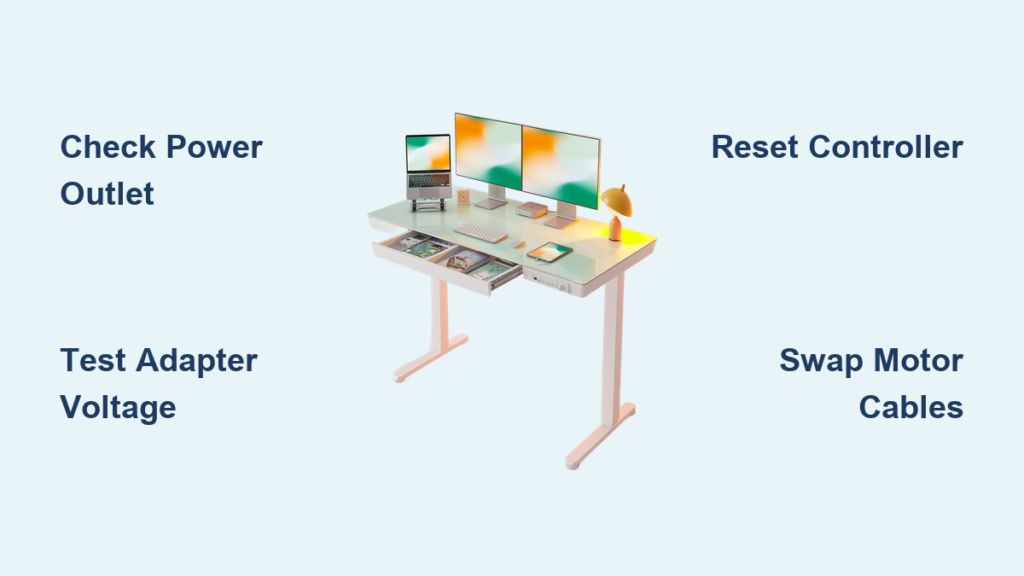
Plug in a lamp or phone charger to verify the outlet works. If nothing powers on, the issue is external. Check the circuit breaker or try a different outlet entirely.
Inspect the Power Supply
The transformer (black box on the power cord) should output 29.5V DC. Use a multimeter to test voltage at the control box input. If no voltage is present, the transformer may be faulty or the fuse may be blown.
Warning: Never open the transformer. Replace it if defective.
Look for Physical Damage
Check the power cord for cuts, kinks, or chew marks. Pets love cables. Ensure the plug is fully seated in both the wall and desk base.
Clear Obstructions Immediately
Your desk may have stopped moving to protect itself. Modern standing desks include collision detection that halts movement when resistance is felt.
Upper Obstruction Blocking Movement
Ceiling shelves, artwork, or lights can prevent upward travel. The desk’s collision detection will halt or reverse motion. Remove the object causing the blockage. Ensure at least 6 inches of clearance above the desk.
Lower Obstruction Preventing Descent
Chairs, filing cabinets, or pedal exercisers under the desk can block lowering. The desk may stop, reverse slightly, or display an E5 error. Clear the area completely before attempting to lower.
Critical: Always clear obstructions before resetting. Anti-collision features are disabled during reset, which could cause damage if something is in the way.
Perform a Full Manual Reset
This is the number one fix for unresponsive controllers. The majority of “dead” control boxes work after this simple procedure.
General Reset Procedure
- Clear the workspace by removing all items above and below the desk.
- Unplug the desk and wait 30-60 seconds to discharge internal power.
- Check all cables and re-seat motor, sensor, and control panel connectors.
- Plug the desk back into a known-working outlet.
- Press and hold the down arrow until the desk reaches the lowest point.
- Continue holding after bottoming out. The desk will dip slightly, then rise slightly, then stop.
- Release the button and test both up and down functions.
Success Tip: 70% of dead control boxes work after this reset. Presets may need reprogramming after a successful reset.
Try Model-Specific Reset Methods
Different brands use unique reset sequences. Knowing yours can save time and frustration.
UPLIFT Desk Quick Reset
- Clear space under the desk.
- Press and hold the down button for 10 seconds.
- Look for “ASr” or “RESET” on the display.
- Release, then press and hold down again until the desk lowers slightly, rises slightly, then stops.
- Test movement in both directions.
Soft Reset (Simultaneous Button Press)
- Clear the desk of all weight.
- Press and hold both up and down buttons together for 10-15 seconds.
- The desk should move down automatically.
- Let it reach the bottom. The reset is complete.
Auto-Reset at Bottom Position
Some models reset automatically when fully lowered. Manually lower the desk to its lowest position. Wait 5 seconds. Try raising it. The up function should return.
Unlock a Locked Control Panel
A locked keypad can mimic controller failure. This is common on Desky and similar brands.
Fix “LOC” Display
- Press and hold the M button for 3-5 seconds.
- If locked, “LOC” will appear on the display.
- Hold M again to unlock.
- Confirm buttons respond normally.
Accidental presses can lock the panel. This is not a failure. It’s a feature designed to prevent unintended adjustments.
Diagnose Error Codes

Flashing codes tell you exactly what is wrong. Understanding them speeds up troubleshooting significantly.
E3 / E3 RES / E33: Motor Detection Failure
This means the controller cannot detect one or both motors. Causes include loose motor cables, damaged wiring, excessive load, or a faulty motor or PCB. Unplug and re-seat motor cables. Perform a full reset. If the problem persists, test motors or replace the controller.
E5: Overload or Overcurrent
This indicates too much weight or mechanical resistance. Causes include load exceeding capacity (typically 150-350 lbs), obstruction in the path, or misaligned legs. Remove monitors, accessories, or heavy items. Clear obstructions. Let motors cool by waiting 10 minutes. Try a reset after reducing weight.
E6 / E66: Communication Failure
This means the controller cannot talk to the motor(s). Causes include damaged data cable, failed motor encoder, or corrupted firmware. Inspect and re-seat data cables. Test motors independently. Replace the control box if cables test good.
Warning: E33 and E66 flashing together may indicate serious hardware failure requiring professional repair.
Inspect for Loose or Damaged Cables
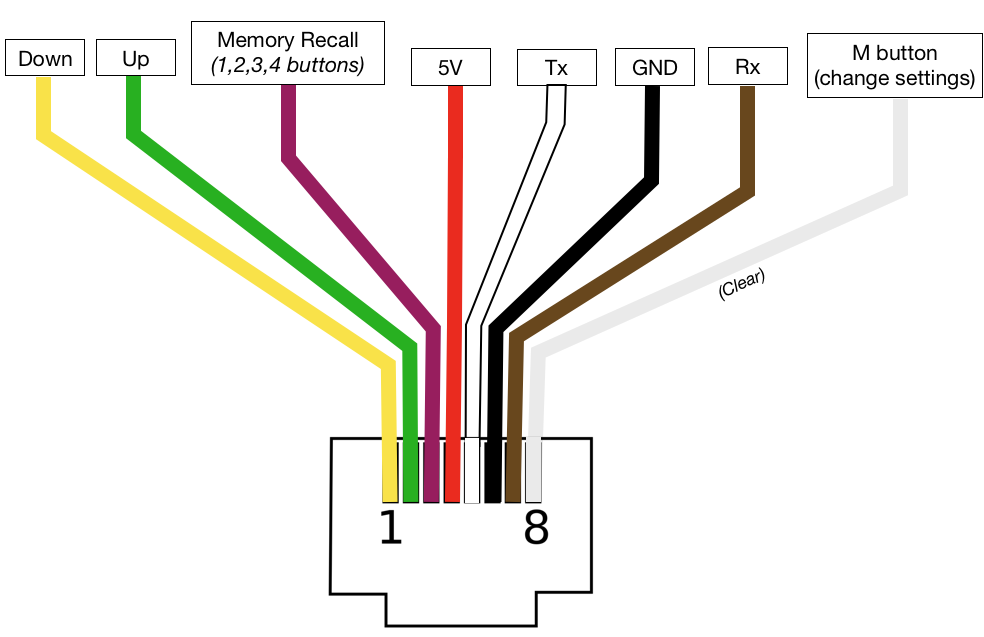
Loose connections are the second most common cause of controller failure. They mimic hardware failure but are free to fix.
Check These Cable Connections
Power cable to wall, motor-to-control-box cables (usually two), control panel harness, and sensor/AUX cable under the keypad.
How to Inspect Properly
- Unplug the desk.
- Open the base if accessible.
- Visually and physically check each connector.
- Re-seat any that feel loose.
- Look for bent pins or frayed wires.
Use zip ties or cable sleeves to secure wires and prevent future tugs. Cable management protects your investment.
Address Motor Desynchronization
Dual-motor desks can fall out of sync over time. This causes uneven movement and can trigger error codes.
Signs of Desync
One leg moves slower than the other. The desk tilts during adjustment. It stops mid-cycle. Error codes like E5 or E6 may appear.
Fix: Perform a Full Reset
Reset forces both motors to re-home and re-synchronize. Place a spirit level on the desk to confirm it is level before resetting. If one motor does not move at all, test it independently or replace it.
Avoid Duty Cycle Lockouts
Your desk is not broken. It is resting. Most control boxes have a 10% duty cycle to prevent overheating.
What Is Duty Cycle
Two minutes of movement requires 18 minutes of rest. This protects the motors and extends the lifespan of your desk.
Symptoms of Duty Cycle Lock
The desk stops responding after frequent adjustments. No error code appears. It resumes after 15-20 minutes.
Fix
Wait 18 minutes for natural recovery. Or perform a manual reset, which often overrides the lockout. Avoid rapid up/down cycles. Space out your adjustments.
Test for Overload Conditions
Too much weight can silently disable your desk. Most standing desks support 150-350 lbs total.
Know Your Desk’s Capacity
UPLIFT desks support 325 lbs. Desky supports 308.6 lbs. Standard models support 150-200 lbs. This includes the desktop, monitors, arms, trays, and everything on the frame.
How to Fix Overload
- Remove all non-essential items.
- Try lowering the desk. Down function often still works.
- If it moves, reduce weight further.
- Perform a reset once load is safe.
E5 error often clears automatically after weight reduction. Check your manual for exact specifications.
Manual Override Options
When the controller is completely dead, you still have options for emergency adjustment.
Use a Manual Crank
Some desks include a hand crank stored in the base. Insert it into the motor column port. Turn clockwise to raise, counterclockwise to lower.
Apply Gentle Manual Force
- Unplug the desk.
- Grasp both sides of the tabletop.
- Apply steady pressure up or down.
This only works on low-resistance models. Do not force it. Resistance means binding or jam, and forcing it could damage internal gears.
Caution: Never force movement when resistance is felt. Stop and investigate the cause.
Replace Faulty Hardware
If all else fails, a part may be dead. Knowing what to replace saves money and time.
Common Failures and Costs
Control box (PCB) failures cause E3/E6 errors and cost $50-$150 to replace. Motor failures cause one leg to stop working and cost $80-$130. Control panel failures cause blank displays or unresponsive buttons and cost $30-$70. Cable issues cause intermittent operation and cost $10-$25.
How to Test Components
Use a multimeter on the power supply. It should read approximately 29.5V DC. Test motors by disconnecting and powering directly with a DC source. If motors work when bypassed, the PCB is faulty.
Pro Tip: Order OEM parts from the manufacturer. Third-party controllers may not sync properly with your desk.
Prevent Future Issues
A well-maintained desk can last 10 or more years. Simple habits keep it running smoothly.
Preventive Maintenance Checklist
Reset every 3-6 months to maintain synchronization. Use wire management to prevent cable pulls. Stay under the weight limit. Avoid rapid adjustments. Respect the duty cycle. Clean dust from motors annually. Tighten bolts every 6-12 months. Check floor levelness and use shims if needed.
Contact Manufacturer Support
When DIY fails, get professional help. Have your information ready for faster service.
UPLIFT Desk Support Options
Phone: 800-349-3839 (Mon-Fri 8AM-6PM CT). Email: hello@upliftdesk.com. Live chat available on their website.
Prepare Before Contacting: Have your model number, serial number, and symptom description ready. Provide details like error codes, reset attempts, and photos of connections.
Final Takeaways for Fixing Your Standing Desk Controller
Standing desk controller not working issues are usually simple fixes. Seventy percent of problems resolve with a simple reset. No parts needed. Loose cables mimic hardware failure, so always inspect connections first. Power loss disables up function, and reset restores it. E3 means motor detection failure, E5 means overload, and E6 means communication failure. Duty cycle causes temporary lockouts, so wait or reset. Container stops limit travel, so reprogram if needed. Manual override is possible using a crank or gentle force.
Do not replace your desk yet. Try the reset, check the cables, clear obstructions, and decode the error. In most cases, your standing desk controller will come back to life with no cost and no hassle.
Frequently Asked Questions About Standing Desk Controller Not Working
Why is my standing desk controller not responding at all?
The most common causes are power loss, loose cables, or the desk being in duty cycle lockout. Start by checking that the outlet works and the power cable is securely connected. Try a full reset by holding the down button until the desk reaches the bottom. This resolves approximately 70% of unresponsive controller issues.
What does error code E3 mean on my standing desk?
E3 indicates the controller cannot detect one or both motors. This usually means a loose motor cable, damaged wiring, or a faulty motor. Unplug the desk, re-seat all motor connectors, and perform a reset. If the error persists, the motor or control box may need replacement.
Can I fix a standing desk controller that only moves down?
Yes. This is typically caused by a power interruption that puts the desk into reset mode. Perform a full manual reset by holding the down button until the desk reaches its lowest position, dips slightly, rises slightly, and stops. This restores full functionality in most cases.
How do I unlock my standing desk control panel?
If “LOC” appears on the display, the panel is locked. Press and hold the M button for 3-5 seconds to unlock. Hold it again if needed. This feature prevents accidental button presses and is common on Desky and similar brands.
Why does my standing desk stop working after a few adjustments?
This is likely a duty cycle limit. Most standing desk controllers have a 10% duty cycle, meaning 2 minutes of movement requires 18 minutes of rest. Wait 18 minutes for the system to cool down, or perform a reset to override the lockout.
How much weight can a standing desk handle before the controller fails?
Most standing desks support 150-350 lbs total, including the desktop, monitors, and accessories. Exceeding this limit triggers overload protection, which may display an E5 error or simply stop movement. Remove excess weight to restore functionality.