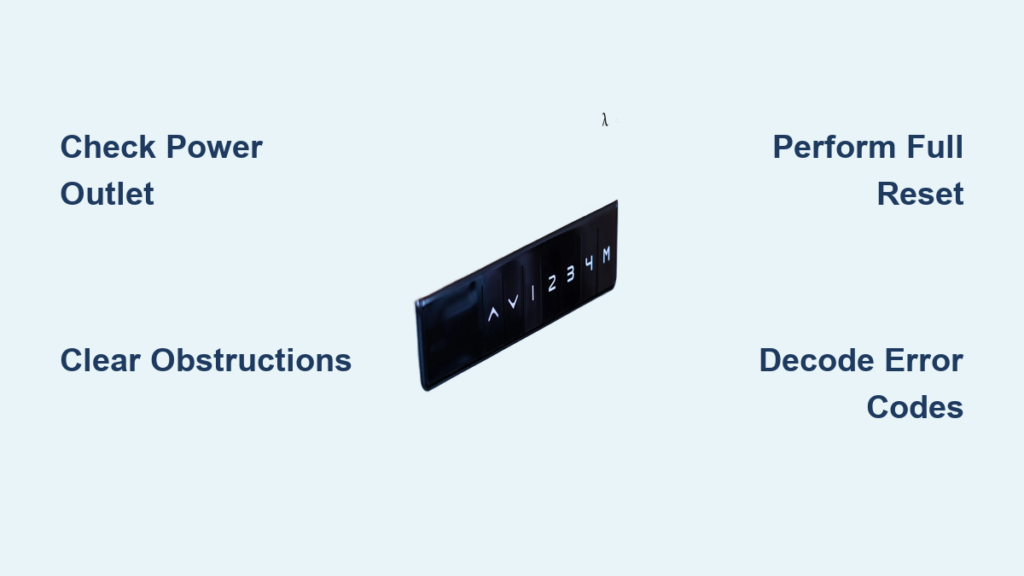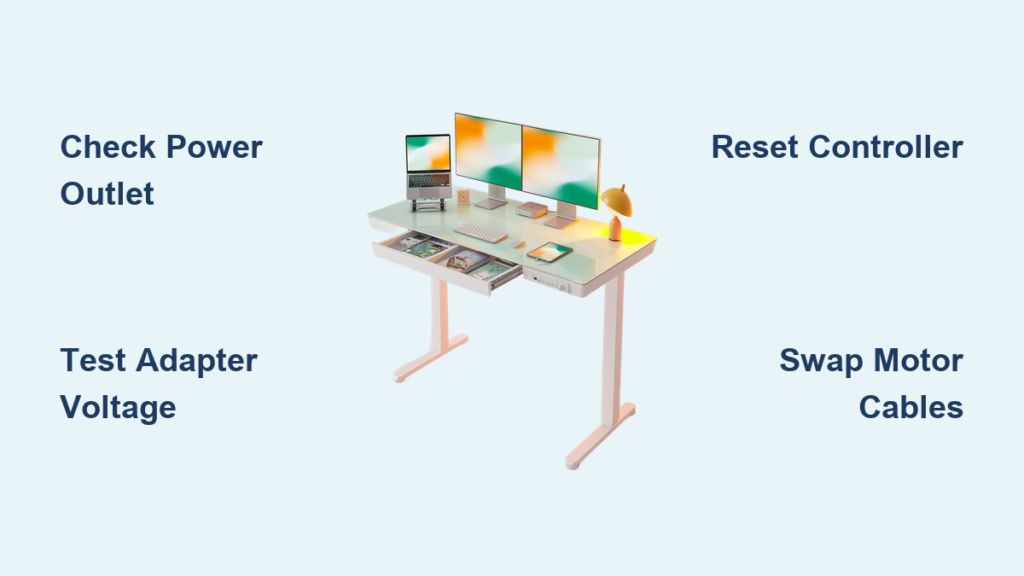
If your Jarvis standing desk won’t go down, you’re not alone. This common issue—where the desk gets stuck at maximum height or refuses to lower despite working perfectly in the upward direction—plagues users across models and years. The good news: in over 90% of cases, it’s not broken. Instead, your desk has likely entered a safety mode after a power interruption, obstruction, or sync error. The primary fix is a proper reset. This guide walks you through every verified solution, from quick button holds to full system reboots, so you can get your desk moving again in minutes, not days.
You’ll learn how to decode error codes like ASR or RST, eliminate hidden obstructions, and perform model-specific resets that actually work. Whether your desk hums but doesn’t move, shows no lights, or only goes down but never up, we’ve got the exact steps to restore full function, backed by user reports and technical specs.
Reset Your Jarvis Desk First
When your Jarvis desk won’t go down, start with a reset. Most issues stem from power loss or calibration errors, not hardware failure. A successful reset clears error states, recalibrates motor sync, and restores normal operation.
Hold Down Button Until Reset Complete
This is the most effective fix for desks stuck at full height. It forces the control box to relearn the bottom position and exit one-way safety mode.
Follow these steps:
- Clear all space under and around the desk.
- Plug the desk in if not already connected.
- Press and hold the down arrow continuously.
- Keep holding as the desk lowers to its lowest position.
- Once at the bottom, continue holding for 10 to 20 seconds.
- Watch for a click, shudder, or display flash showing RESET.
- Release the button and test both up and down movements.
Note: This process erases all M1 through M4 presets. You’ll need to reprogram them afterward.
If the display shows ASR or RST, this method is required. Over 17 users have verified success after power outages or unexplained lockups.
Fix Desk After Power Loss
Lost power is the number one reason your Jarvis desk won’t go down. After a blackout or accidental unplugging, the desk defaults to one-way downward mode, a safety feature to prevent sudden ascent from an unknown height.
Desk Only Goes Down? Recalibrate It
If your desk moves down but not up, it’s in post-power-loss safety mode. You must complete the reset sequence to restore bidirectional control.
Follow these steps:
- Lower the desk fully using the down button.
- Hold the down button for 20 seconds after it stops at the bottom.
- Release and test upward movement.
Until you complete this, the desk won’t go up. This happens even after brief power flickers. The desk isn’t broken, it’s waiting for confirmation it’s at the true bottom.
Pro Tip: Plug your desk into a surge protector or UPS to prevent future memory loss from power disruptions.
Clear Obstructions Immediately
Even minor resistance can trigger the Jarvis desk’s anti-collision sensors, halting descent. If the desk started lowering but stopped partway, an obstruction is likely the culprit.
Check These Common Blockages
Several items commonly cause obstructions:
- Cables pinched between legs or under the frame
- Rugs or carpet bunching under the base
- Chair arms, filing cabinets, or walls contacting the desktop
- Accessories like monitor arms or cable trays hitting the floor
Action Steps:
- Unplug the desk completely.
- Manually inspect the full travel path from top to bottom.
- Remove any objects or tension points in the way.
- Plug back in and retry the reset sequence.
Visual Cue: If the desk jerks or hums briefly when you press the down button, it may be detecting resistance. Clear the path and reset again.
Fix Uneven Leg Movement

Dual motors can fall out of sync due to flooring tilt, weight imbalance, or minor resistance. When legs are misaligned, internal strain triggers a shutdown, often blocking descent.
Resync Motors With Full Reset
- Unplug the desk from the wall.
- Disconnect all cables at the control box, including power, keypad, and both motor wires.
- Wait 30 seconds for the system to fully discharge.
- Reconnect all cables firmly, ensuring no bent pins.
- Plug in and perform the down-button hold reset.
This forces both motors to recalibrate from the bottom. Users report needing to repeat this process 2 to 4 times after long-term disuse or power events.
Warning: Bent pins or loose connectors can mimic motor failure. Always inspect wiring first before assuming hardware problems.
Decode Error Codes ASR and RST

If your display shows ASR or RST, your desk is signaling a system fault. These codes disable normal operation until resolved through specific procedures.
Fix ASR Error (System Fault)
ASR means the control box detected an anomaly, often from power loss or collision detection.
Fix It:
- Press and hold the down arrow.
- Lower the desk fully to the bottom.
- Hold for 20 seconds after it stops.
- Release the button.
The code should clear. If it persists, repeat the full cable disconnect reset procedure.
Handle RST Mode (Recalibration Request)
RST means the desk needs recalibration, which is common after unplugging or power interruptions.
Solution:
- Refer to page 10 of the Jarvis manual for model-specific instructions.
- Perform the basic down-button reset.
- Ensure no obstructions are present during the process.
Both codes are software-level issues, not hardware failures. A proper reset almost always resolves them.
Try Capacitive Keypad Reset
If your Jarvis desk has a touch-sensitive keypad with a Fully logo, use this specialized reset method designed specifically for capacitive interfaces.
Touch and Hold the Fully Logo
- Unplug and disconnect all cables as shown in earlier steps.
- Reconnect everything securely.
- Press and hold your finger on the Fully logo for 15 seconds. Do not touch the up or down toggles during this step.
- Release and repeat this three more times.
- On the fourth attempt, hold until the desk dips down slightly, then pops back up, then stops.
- Finally, touch and hold the bottom edge of the keypad (down side).
This recalibrates the touch interface and control box together. Over 15 users confirmed success, especially after long periods of disuse or power failures.
Bypass Height Limit Lockouts
Programmable desks can appear stuck if preset height limits are misconfigured. An incorrectly set lower limit prevents full descent.
Reprogram M1 Through M4 Presets
- Hold M1 until it flashes.
- Press the down arrow to set a new low point.
- Repeat for M2 through M4 if needed.
Alternatively, perform a full reset. This clears all presets and restores the default travel range.
Note: Some users confuse software limits with mechanical failure. Always reset before assuming hardware issues.
Prevent Overheating Lockouts
The control box follows a 10% duty cycle: 2 minutes of movement followed by 18 minutes of cooldown. Exceeding this causes the system to overheat and temporarily disable.
Desk Stopped After Heavy Use?
If you’ve made frequent adjustments, the system may be overheated.
Fix It:
- Wait 18 minutes for the system to cool.
- Try lowering again.
- If still unresponsive, perform a reset.
Avoid rapid up and down cycling. Let the desk rest between major adjustments.
Pro Tip: Plan your ideal sitting and standing heights in advance to minimize repeated tweaks throughout the day.
Check Cables and Connections
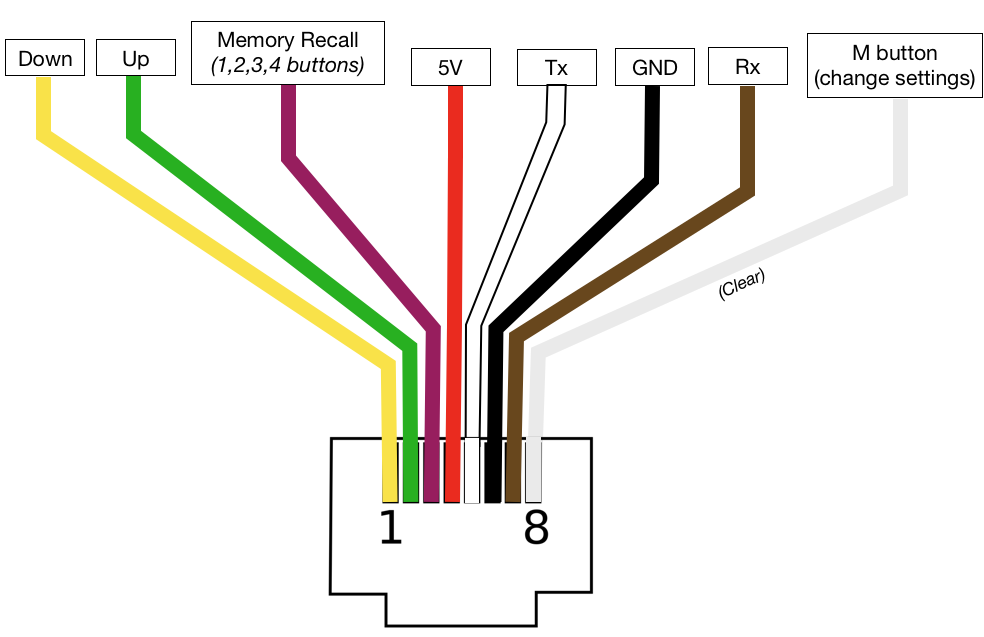
Loose wiring is a silent killer. A partially disconnected motor cable can allow one leg to move while blocking the other, creating uneven movement or complete stoppage.
Inspect Control Box Wiring
- Locate the control box inside one leg column.
- Unplug the desk from the wall.
- Check each connection point: power cable seat, keypad connector (no bent pins), and both motor wires.
- Disconnect and re-seat each connector firmly.
- Plug in and test movement.
Warning Signs:
- One leg moves while the other doesn’t
- Intermittent operation
- No response after completing reset
If cables appear frayed or damaged, contact Fully for replacement parts.
When to Contact Fully Support
If all resets fail, it’s time to contact support. True hardware failures are rare but possible.
Signs of Internal Failure
Watch for these indicators:
- No movement, no lights, no sound at all
- Burning smell coming from the control box
- Humming noise with no motion
- One motor runs while the other is dead after reset
Get Warranty Support
Jarvis desks come with a 7-year warranty covering motors, control box, frame, and handset for defects.
Contact Fully through:
- Phone
- Live chat
- Reddit community at r/FullyDesk
Have your order number and model ready. Most users receive replacement parts within days.
User Report: One customer received a free control box after a failed reset, and it fixed the issue instantly.
Prevent Future Issues
Avoid repeat lockups with these best practices for long-term reliability.
Maintain Clean Operation
- Clear the area under the desk weekly
- Use cable management sleeves to prevent tugs
- Recalibrate every 6 to 12 months with a full reset
- Stay under the 355 lbs load limit
- Place on level flooring
Pro Tip: Bookmark the Fully support page for firmware updates. Some releases fix sensor drift and motor sync bugs.
Frequently Asked Questions About Jarvis Desk Won’t Go Down
Why does my Jarvis desk only go down after a power outage?
Your desk enters safety mode after power loss to prevent uncontrolled ascent from an unknown height. It allows downward movement only until you complete a reset by holding the down button for 20 seconds after reaching the bottom.
How do I fix the ASR error on my Jarvis desk?
Press and hold the down arrow, lower the desk fully, then continue holding for 20 seconds after it stops. Release and test both directions. Repeat if needed.
Can I reset my Jarvis desk without losing my height presets?
No. Any full reset erases M1 through M4 presets. You’ll need to reprogram them afterward. Consider writing down your preferred heights before resetting.
What does it mean if my desk hums but won’t move?
A humming sound with no movement typically indicates a motor issue or power delivery problem. Check all cable connections first. If the problem persists after reseating cables, contact Fully support for potential motor replacement.
How long should I wait if my desk overheated?
Wait 18 minutes to allow the control box to cool down. This follows the 10% duty cycle design. After waiting, try the reset procedure again.
Is my desk covered under warranty if it won’t go down?
Yes. The 7-year warranty covers motors, control box, frame, and handset defects. Contact Fully with your order number and model for replacement parts at no cost.
Key Takeaways for Fixing Your Jarvis Desk
A Jarvis desk that won’t go down is almost never permanently broken. In most cases, it’s stuck in safety mode after power loss, detecting an obstruction, or needing recalibration. The fix is almost always a reset procedure. Start with the basic down-button hold, then progress to full cable disconnection and reconnection if needed. Clear obstructions first, check all wiring connections, and never skip the 20-second hold at the bottom. Most users resolve the issue in under 10 minutes without any tools or costs. If all resets fail, Fully’s warranty support has you covered with free replacement parts. Your desk isn’t broken. It’s protecting itself. A reset tells it recalibrate now, and you’ll never fear a power flicker again.